Text Inserts
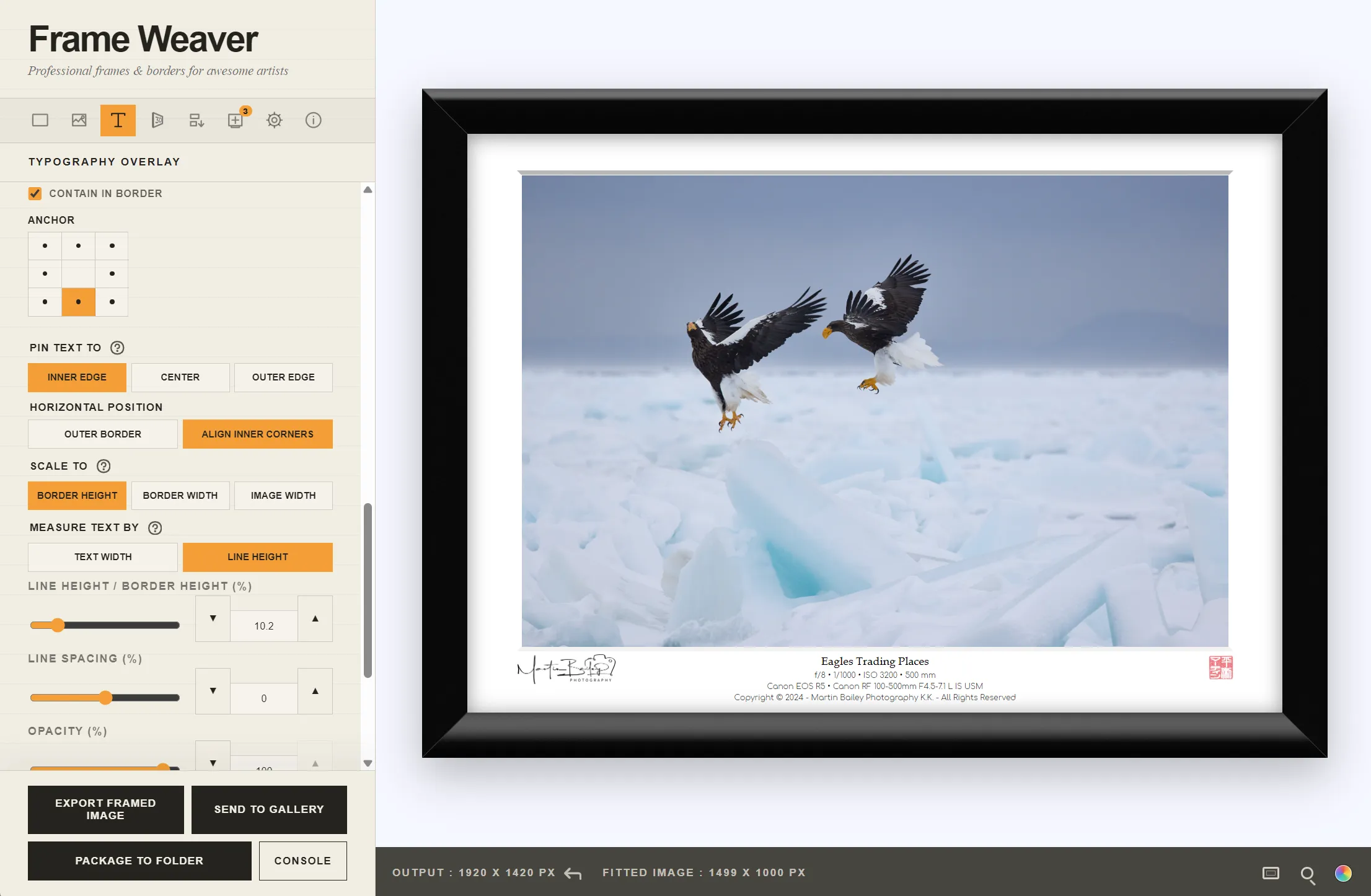
Contained text inserts provide the same horizontal Scale To choices and 1-100% size range as graphic watermarks. Select Border Height to size from the matte depth, Border Width to size from the selected border band, or Image Width to keep type proportional to the fitted image.
For scalability and preset reuse, set Measure Text By to Line Height (the default) rather than Text Width. Text width changes with the number of characters used, so the ink height of text is much more reliable.
The selected mode is retained in text libraries, workflow presets, Autopilot, and the last-used application state. Both Border Shift percentages use that same selected measurement.
Use the fixed Text Overlays area to add, reorder, and remove independent text items. Typography Overlay Presets, at the top of the Typography Overlay sidebar, keeps named sets of text inserts, with New, Update, Edit, and Revert as for graphic overlay presets.
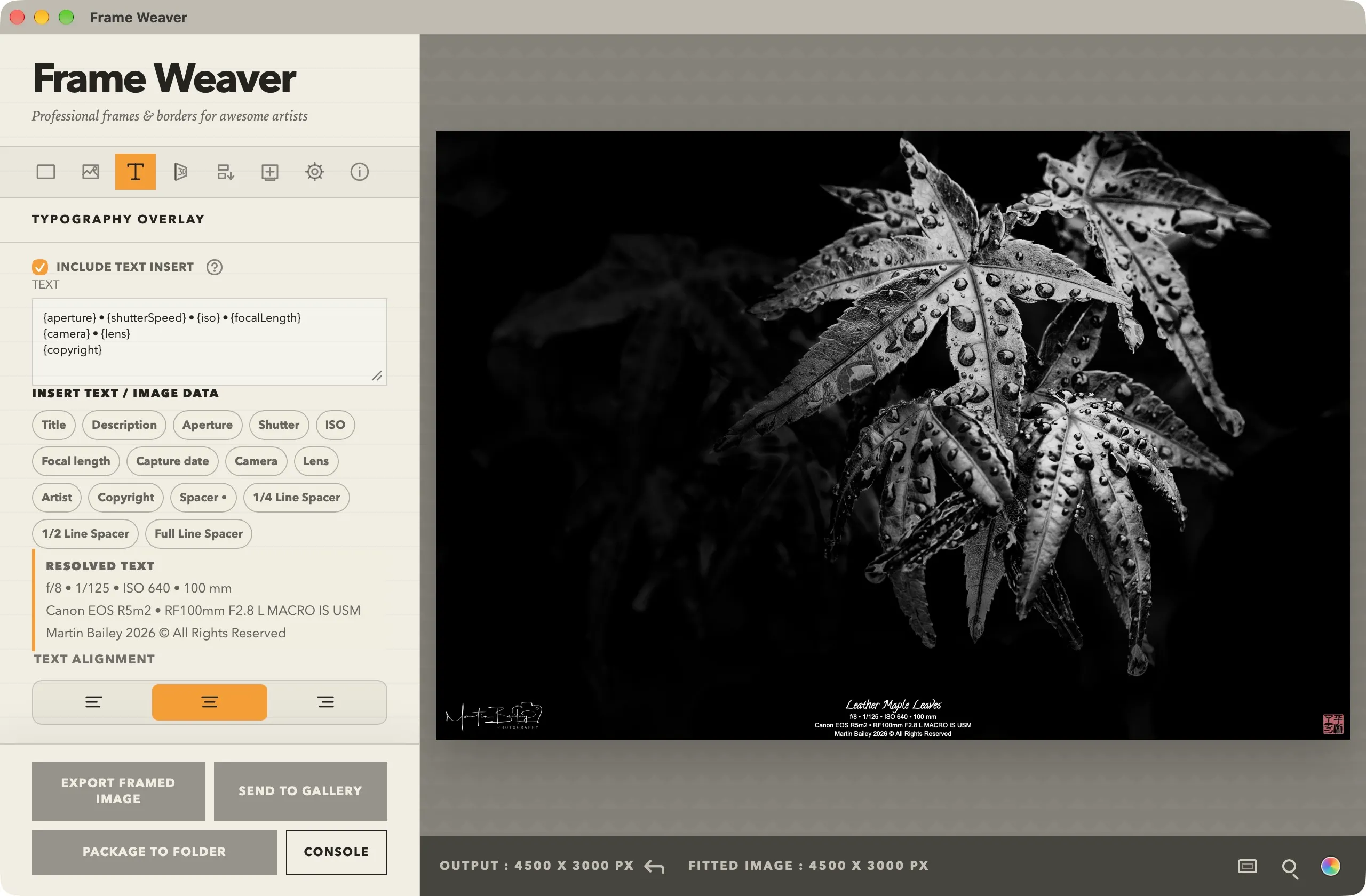
The Insert Text / Image Data buttons add literal text or source metadata tokens: Title, Description, Aperture, Shutter, ISO, Focal Length, Capture Date, Camera, Lens, Artist, and Copyright. Title is the photograph’s own title, or its description when it has none; on iOS and Android, where no title can be read, it is always the description. Focal Length shows whole millimeters from 10 mm up, such as 100 mm, and one decimal below, such as a phone’s 6.9 mm. Before an image is opened, the tokens show the example photograph’s own details. Missing metadata resolves to an empty value. The Spacer button inserts a bullet with surrounding spaces. Quarter-, half-, and full-line spacer tokens add proportional vertical spacing without requiring blank text lines.
Choose left, center, or right text alignment, then choose an installed font. Click Installed Font and type part of a name to narrow the list, which shows each font in its own face; Enter takes the highlighted font and Escape closes the list. The checkboxes show only Regular, Italic, Bold, Bold Italic, Light, Medium, or Semibold faces, or Other for any other weight, such as Thin or Black; with none ticked, every face is shown. Copies includes a face installed more than once. The same installed font is used by preview and native export. Text color starts in automatic mode: dark text is selected for light mattes and light text for dark mattes until the user chooses a color explicitly.
Text uses the same Target Border, Position Relative To, nine-point Anchor, border pinning, inner-corner alignment, opacity, and shift model as graphic watermarks. The Secondary Border’s outer position refers to that matte, never the outer picture frame.
Edit image text
Section titled “Edit image text”On a Mac or Windows computer, Edit image text, above the text overlays list, changes the title, description, and copyright stored in the loaded image itself. Tick it to show the note “Changes are written to your image on Save.” and Title, Description, and Copyright fields filled from the image. Save writes them into the image file (JPEG, TIFF, or PNG), leaving the picture and all its other metadata untouched, and updates any text insert that shows them; an emptied field is removed from the image. Cancel discards the changes.
Text placed Inside Image Edge or Free on Canvas is sized from 0.1% to 20% of the image or canvas width, in steps of 0.01. Free on Canvas, the vertical shift is a share of the canvas’s short edge, so on a portrait image a title keeps its place above the lines under it.