File Attachments
A note can hold files as well as pictures: a PDF of a schedule, a spreadsheet, a signed form. An attached file is copied into your note library and synchronized to your other devices with end-to-end encryption, exactly as embedded images are.
Attaching a File
Section titled “Attaching a File”There are two ways to attach a file to the note you have open:
- Click Attach file in the toolbar and choose one or more files.
- On Mac and Windows, drag files from the Finder or File Explorer into the note in rich mode.
A dropped picture that Note Weaver can show (PNG, JPEG, GIF, WebP, or SVG) is embedded as an image, as before. Every other dropped file is attached. To attach a picture as a file, use the Attach file button.
The attachment appears in the note as a small box with a file icon, the file’s name, and its size. You can leave it on a line of its own or put it inside a sentence. In Markdown mode an attachment is a link:
[Club schedule 2027.pdf](noteweaver-asset://…)Adding a File to a Folder
Section titled “Adding a File to a Folder”A file does not have to sit inside a note. You can add it straight to a folder, where it is listed among your notes with a file icon before its title and its type, such as PDF, after it.
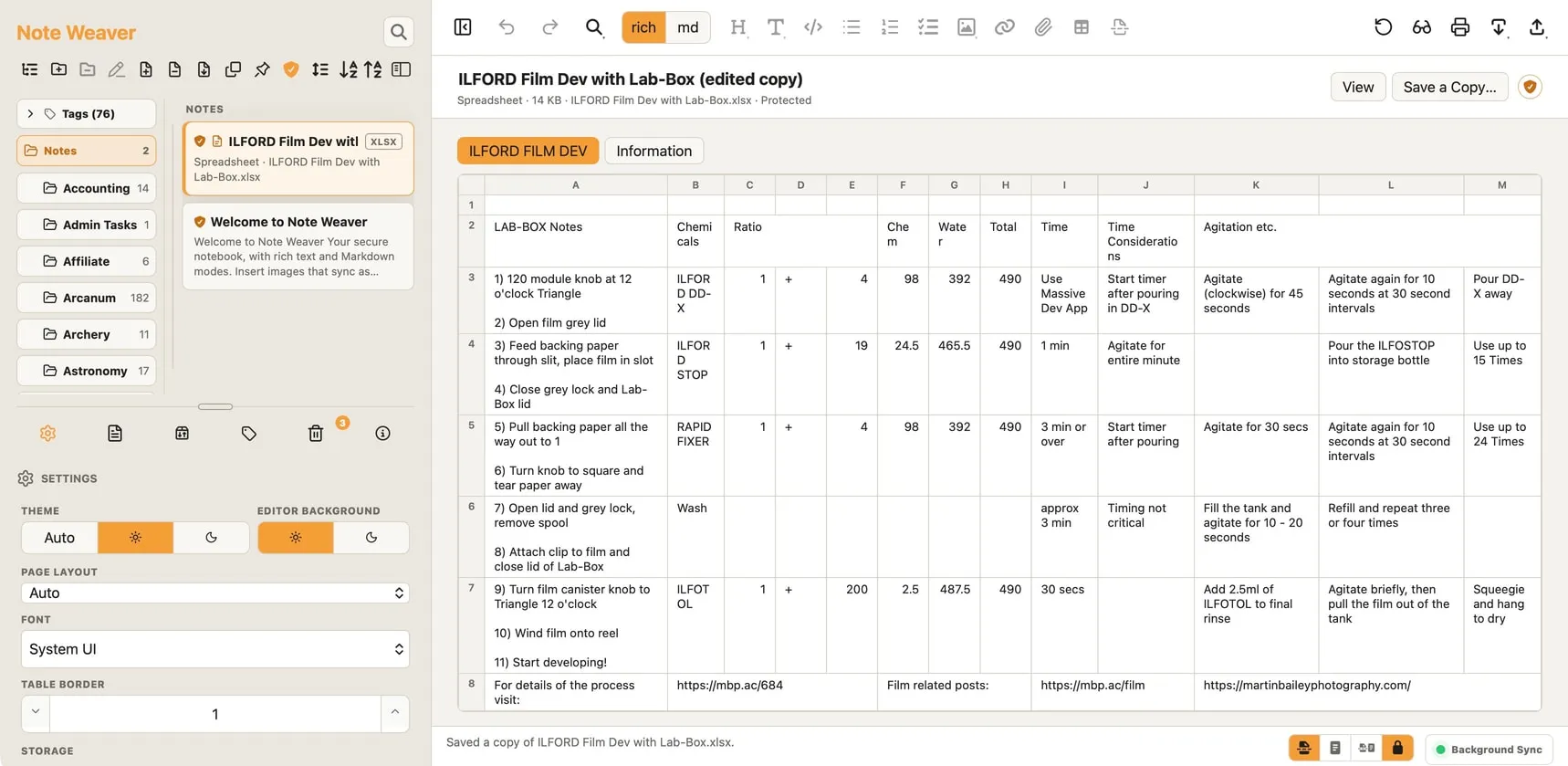
- Click Add file at the top of the sidebar and choose one or more files. They go into the folder you have open.
- On Mac and Windows, drag files from the Finder or File Explorer onto a folder in the sidebar. The folder that will take them is outlined while you hold the files over it. Held anywhere else in the sidebar, they go to the folder you have open, which is outlined in the same way.
A PDF, Word document, workbook, or presentation that carries its own title is listed under that title; any other file is listed under its file name.
Viewing a File
Section titled “Viewing a File”Click a file in the list and Note Weaver shows it in place of the editor:
- A PDF is shown page by page. Use − and + to zoom, and click the percentage between them to fit the page to the window again.
- A text file, such as plain text, Markdown, CSV, or JSON, is shown as text.
- A picture is shown as itself.
- A Word document (.docx) is shown as its pages, fitted to the width of the window, with the same − and + zoom as a PDF.
- An Excel workbook (.xlsx) is shown as a grid of its values, one sheet at a time, with a button for each sheet. Cells that are merged in the workbook are shown merged. The first 2,000 rows and 100 columns of a sheet are shown.
- A rich text file (.rtf) is shown with its text, bold, italic, underline, sizes, alignment, and simple tables.
- Any other file, such as a presentation, cannot be shown in Note Weaver itself. Use View or Edit to open it in its own application.
What Note Weaver shows of a Word document, a workbook, or a rich text file is for reading, and is not always exactly what its own application shows: a workbook’s number formats, charts, and colors are left out, as are the pictures in a rich text file, and a Word document’s layout can differ in places. Use View to see the file as its own application shows it. Older Word and Excel files (.doc and .xls) are not shown.
Above the file are its title, which you can click to rename it, and these buttons:
- View opens a read-only copy of the file in the application your device uses for it. Double-clicking the file in the list does the same.
- Edit opens the file for editing in another application, on Mac and Windows. See Editing a File.
- Save a Copy saves the file wherever you choose, on Mac and Windows.
- Edit as Note shows the file as a note, with its title and the file below it, so that you can write beside it.
A file in a folder is a note that holds that one file, so everything you can do with a note works for it: move it to another folder, tag it, pin it, find it with search, and restore it from Trash. If you write anything beside the file, it becomes an ordinary note with an attachment, and opens in the editor from then on.
Opening, Saving, and Removing
Section titled “Opening, Saving, and Removing”Click an attachment to see what you can do with it:
- View opens a copy of the file in the application your computer uses for that kind of file. The copy is read-only, and changes made to it are not saved back to the note.
- Edit opens the file for editing, on Mac and Windows. See Editing a File.
- Save a Copy saves the file wherever you choose. This is on Mac and Windows; on a phone or tablet, open the attachment and use the viewer’s own share or save button.
- Remove from Note takes the attachment out of the note.
Note Weaver does not open programs or scripts. If one has been attached, save a copy to use it.
Editing a File
Section titled “Editing a File”On Mac and Windows you can change an attached file, or a file in a folder, without taking it out of Note Weaver.
- Click Edit, above a file in the viewer or in an attachment’s menu. The file opens in the application your computer uses for that kind of file.
- Make your changes there and save, as often as you like. A few seconds after each save, Note Weaver brings the saved file in: the viewer shows the new version, and it synchronizes to your other devices like any other change.
- When you have finished, close the file in the other application. There is nothing to do in Note Weaver.
You do not have to keep Note Weaver open while you edit: what you save while it is closed is brought in the next time it starts. To change the file again later, click Edit again. Use Edit, not View, when you mean to change a file: the copy that View opens is read-only, and its application will say so when you try to save.
Some things to know:
- Every save is sent to your other devices as a whole file, so a large file that is saved often takes time to synchronize.
- Note Weaver keeps the version before each save for 30 days, out of sight, and then removes it from every device. There is no list of earlier versions to go back to: save a copy first if you want to keep one.
- If the file is changed on another device, or removed from its note, while you are editing it here, what you save is not lost: Note Weaver keeps it as a separate file in the same folder, named with (edited copy) after its title, and tells you so.
- Editing is not available on a phone or tablet. A file edited on a computer shows its new version there once it has synchronized.
A file larger than 25 MB takes a while to reach your other devices, and longer on a phone, so Note Weaver asks before attaching one. Files larger than 100 MB cannot be attached.
On Your Other Devices
Section titled “On Your Other Devices”Attachments synchronize like everything else in your notes. A note can arrive before its file does; until the file arrives, the attachment is shown with a dashed outline.
On iPhone and iPad, tap an attachment and choose View to see it in iOS’s own viewer, which shows PDFs, documents, spreadsheets, pictures, and more. Its share button sends the file to another app or saves it to Files.
On Android, tap an attachment and choose View. It opens in the app your device uses for that kind of file, and Android asks which app to use if you have more than one.
To attach a file from a phone or tablet, tap Attach file and choose it from Files on iOS or from Android’s file picker.
A device still running Note Weaver 1.2 keeps your attachments safe and passes them on, but shows only their names. Update Note Weaver on that device to open them.
In Exports
Section titled “In Exports”When you export a note or a folder as Markdown, its attachments are copied into the note’s assets folder beside its pictures, and the links point to those copies. PDF, rich HTML, rich text, and printed pages show an attachment’s name, not the file itself.