Import Options
Use the Import menu to bring content into Note Weaver.
Supported import workflows include:
- Import one Markdown or HTML note.
- Import a Markdown or HTML folder.
- Import an Obsidian vault or individual folders.
- Import a Bear notes library.
- Import a OneNote vault or individual folders.
OneNote Section Exports
Section titled “OneNote Section Exports”You can import your entire OneNotes library using the following technique, but exporting each section individually enables you to organize your notes more easily after importing them into Note Weaver.
To import OneNote notes, first select each section, in OneNote’s left menu, then select Export from the File menu, then select Section, followed by Single File Web Page (*.mht).
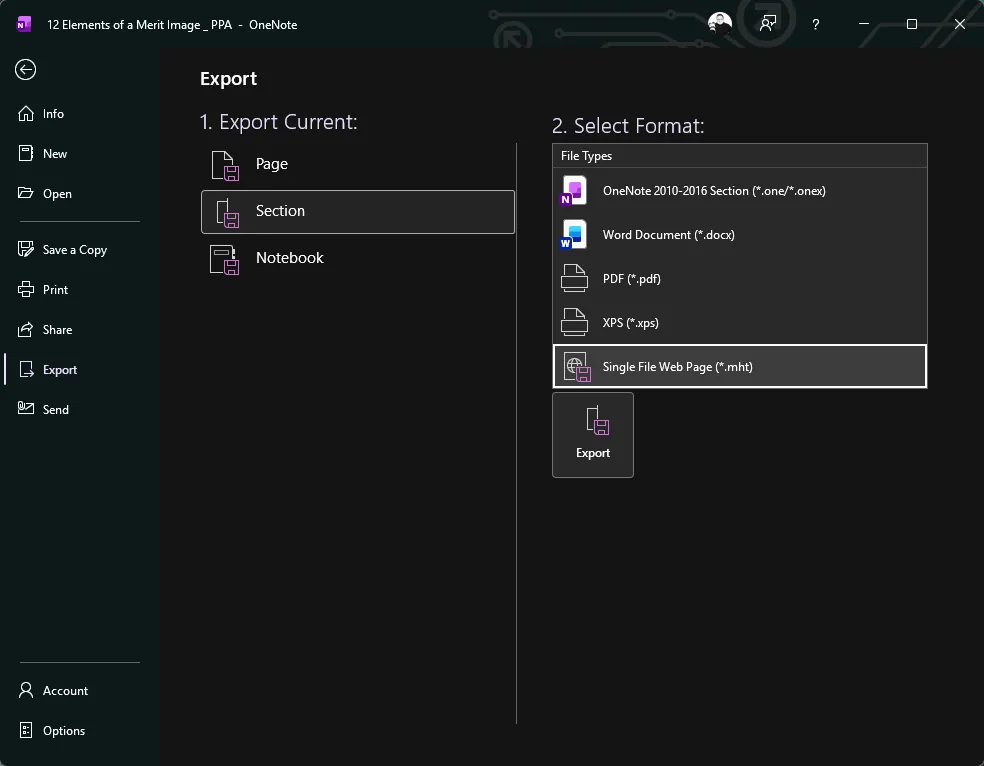
After exporting all of your sections as .mht files, use the Note Weaver OneNote import feature, and select all of your exported section.mht files, and click OK.
Import Tags
Section titled “Import Tags”When you select a Bear, OneNote, or Obsidian import action, Note Weaver will display a message that it will tag the notes with the word Bear, OneNote, or Obsidian, with a timestamp suffix. If you are importing your notes into a library that already contains notes we highly recommend that you leave that checkbox turned on.
Tag Colors
Section titled “Tag Colors”Under the Tags section at the bottom of the sidebar, you will find a Tag Colors section with seven color patches and an X icon. Click a color patch, then click a tag in the list below, and all notes with that tag will be colored with the selected color.
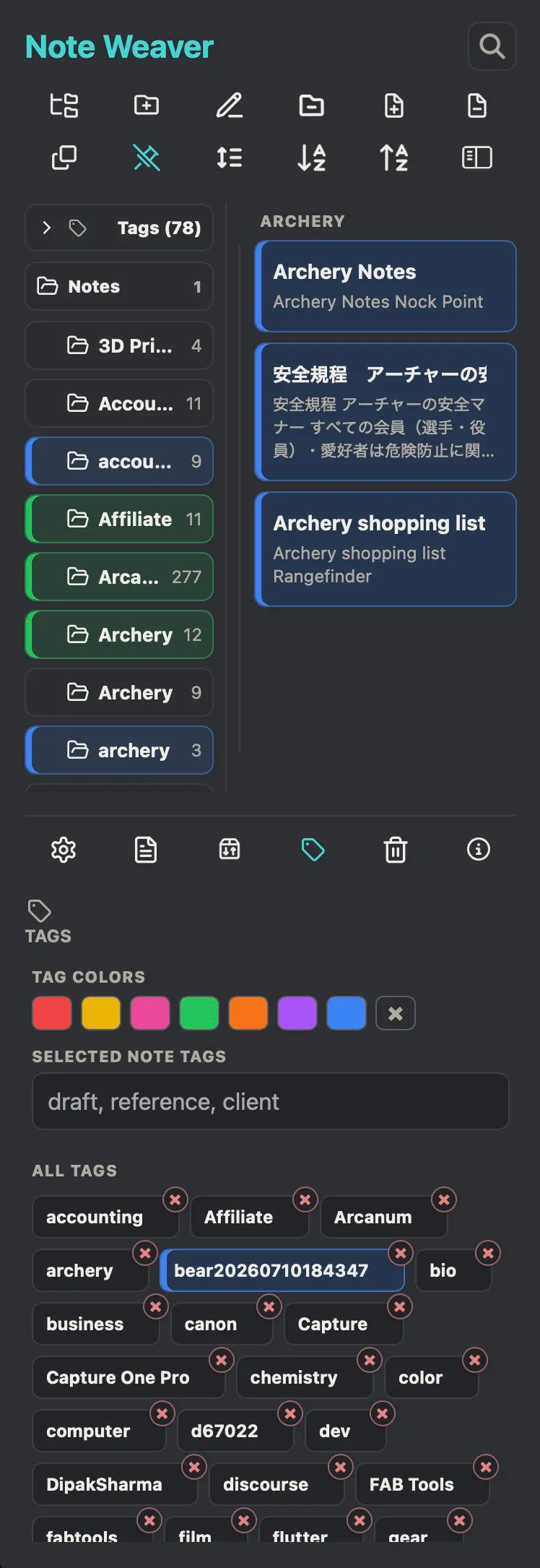
If Note Weaver finds tags at the bottom of your notes, it will attempt to automatically find a folder for your notes based on the tag/keyword. If a folder is found, your notes will be sorted into the folder. If a folder is not found, we will create it.
If your imported notes do not contain tags, you can still find them under the Tag we applied on import. If you applied a color, you will easily see which folders contain your newly imported files, making organizing your imported notes a breeze.
To remove a color from a tag, click the X button to the right of the seven color patches, then click the tag. When you have finished organizing, you can click the X in the top right corner of the tag to remove the tag and remove it from all notes that are still tagged with it.