Protecting Notes
Some notes should not change: a schedule that has been agreed, a signed form, a record you refer to often. Protecting a note guards it against accidents. A protected note cannot be edited or deleted until you unprotect it.
A file you have added to a folder can be protected in the same way.
Protecting a Note
Section titled “Protecting a Note”- Select the note in the sidebar.
- Press and hold the shield at the top of the sidebar. A short track appears above it.
- Without letting go, slide the shield up to the top of the track, then let go.
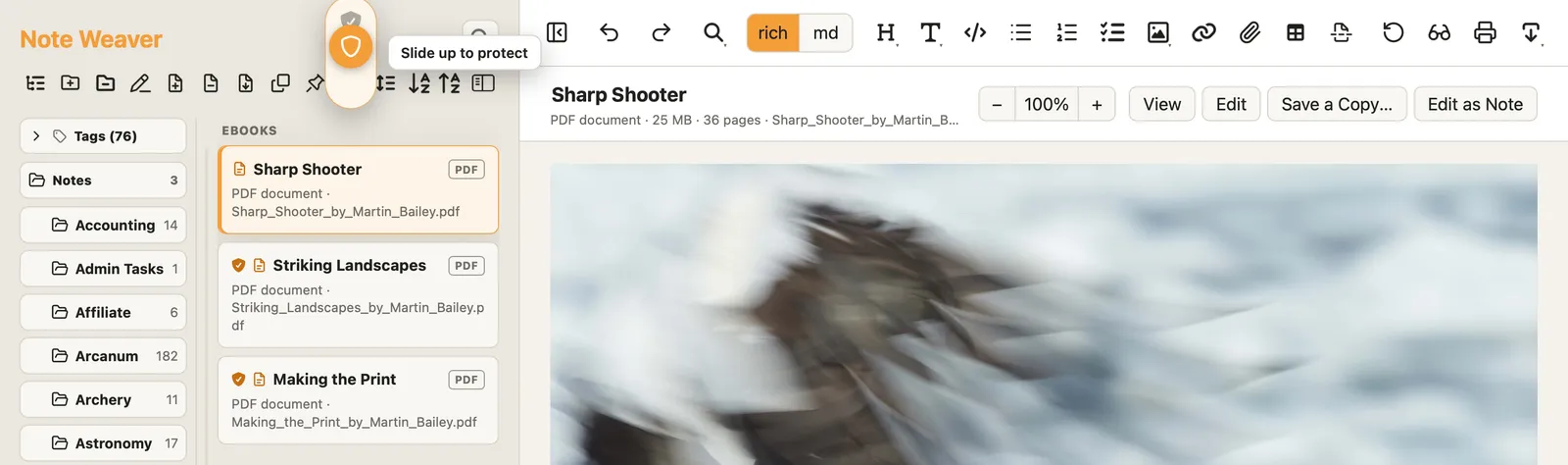
Note Weaver shows Note Protected for a moment. The shield at the top of the sidebar changes to a shield with a check mark in the accent color, the same shield appears beside the note’s title in the sidebar, and a small shield appears in the top right corner of the note itself. Tap or click that shield and the word Protected rolls out beside it for a few seconds, then rolls back.
For a file the messages read File Protected and File Unprotected. The small shield is at the right-hand end of the file’s header, beyond its buttons, or beside the file’s title on a phone, and the word Protected is also added to the line of details under the title.
A tap on the shield does nothing but remind you how it works, and a slide that stops short of the end of the track changes nothing. That is deliberate: a note cannot be protected or unprotected by a slip of the finger.
This works the same way with a mouse on Mac and Windows and with a finger on iPhone, iPad and Android. On a phone, open the sidebar first.
From the Keyboard
Section titled “From the Keyboard”Move to the shield with the Tab key and press Enter or Space. The track appears. Press the up arrow to protect the note, or Escape to cancel.
Unprotecting a Note
Section titled “Unprotecting a Note”Select the note, press and hold the shield , and slide it down to the bottom of the track. Note Weaver shows Note Unprotected, and the note can be edited and deleted again.
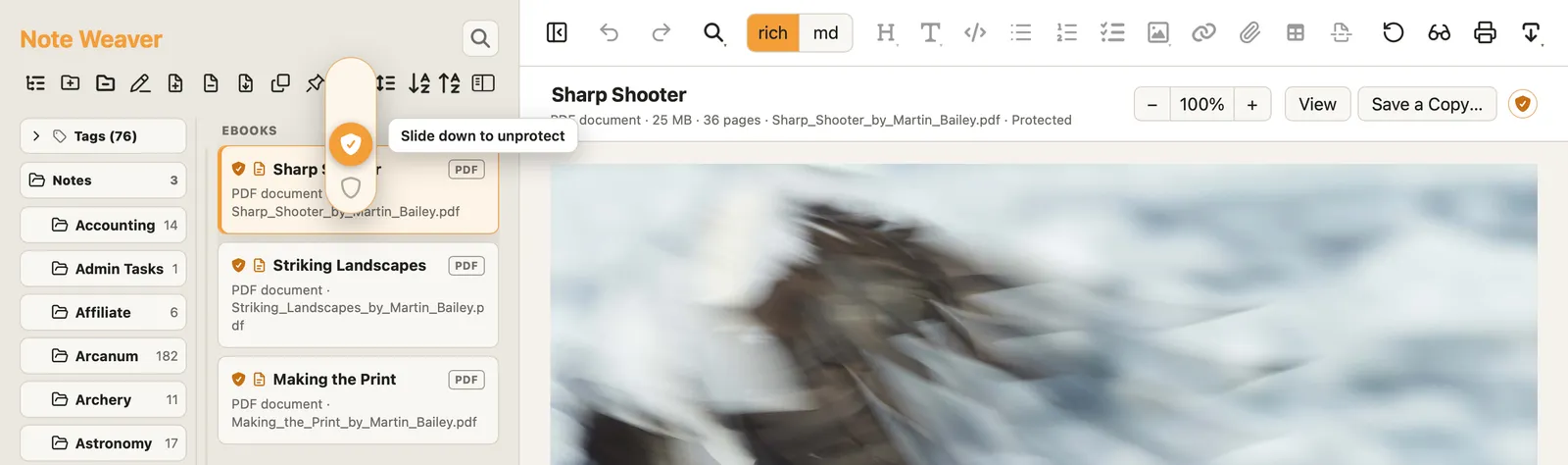
From the keyboard, press Enter or Space on the shield and then the down arrow.
What a Protected Note Allows
Section titled “What a Protected Note Allows”You can still:
- read it, select text in it and copy from it;
- search inside it;
- export it and print it;
- duplicate it (the copy is not protected);
- pin it, tag it, and move it to another folder;
- change its page settings;
- view its attachments and save copies of them.
You cannot:
- type in it, or change it from the toolbar;
- add pictures or attach files to it, or remove them;
- replace text in it with Find and Replace;
- rename a protected file, edit it in another application, or show it as a note;
- delete it, or delete a folder that holds it.
If you try to delete a protected note, Note Weaver tells you that it is protected and leaves it where it is. To delete it, unprotect it first. If you try to delete a folder that holds protected notes, Note Weaver tells you how many there are; unprotect them, or move them to another folder, and then delete the folder.
Protection and Synchronization
Section titled “Protection and Synchronization”Protection synchronizes. A note you protect on one device is protected on all of your devices, and unprotecting it on any of them unprotects it everywhere.
It can happen that a note is changed or deleted on one device before that device has heard that you protected the note on another, for instance while a phone was offline. In that case the note is kept as you protected it:
- A deletion is undone. The note comes back on the device that deleted it.
- A change is not lost either. It is saved beside the protected note as a conflict copy, which you can review and delete or keep. See Conflict Copies.
Protected notes need Note Weaver 1.3.0 on every device, as all synchronization does from this version.
What Protection Does Not Cover
Section titled “What Protection Does Not Cover”Actions on the whole library are not stopped by protection: deleting the note library in Settings, and Library Recovery, act on every note, protected or not.