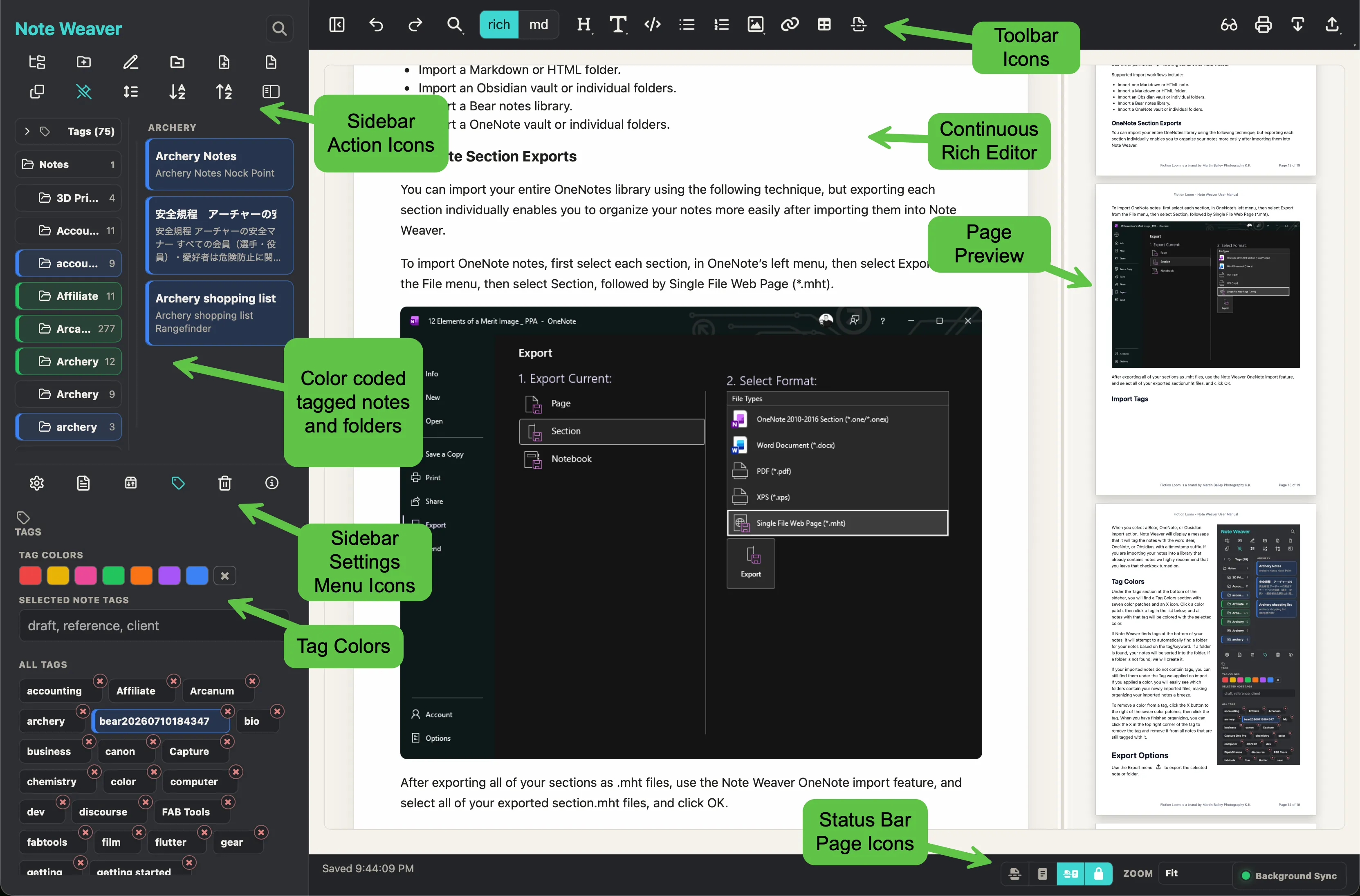
The main Note Weaver window has four primary areas:
- Sidebar: folders, notes, search, settings, export settings, synchronization, tags, Trash, and About.
- Top toolbar: editing commands such as rich/Markdown mode, headings, typography, lists, images, links, tables, import, export, and print.
- Editor area: the current note in continuous editor, page preview, or dual view.
- Status bar: save status, page view controls, preview zoom, and synchronization status.
The interface adapts to screen size. On mobile, the sidebar can be opened and closed to provide more space for the editor.
The icons below are used throughout Note Weaver. Some icons appear in the sidebar, some in the editor toolbar, and some in image or import/export submenus.
| Icon | Feature |
|---|
| Expands or contracts all folders |
| Create a new folder. |
| Rename selected folder. |
| Move the selected folder to Trash. |
| Duplicate the selected note. |
| Pin the selected note to the top of the sidebar |
| Protect the selected note against changes and deletion: press and hold, then slide up. See Protecting Notes. |
| Create a new note. |
| Move the selected note to Trash. |
| Add a file to the open folder. |
| Text alignment and line-style controls. |
| Sort notes alphabetically. |
| Sort notes in reverse alphabetical order. |
| Switch to a single-column sidebar mode |
| Switch to dual-column sidebar mode |
| Icon | Feature |
|---|
| Show the continuous editor. |
| Show page preview. |
| Show editor and page preview side by side. |
| Attempt to scroll Page Preview with Continuous editor. |
| Icon | Feature |
|---|
| Undo changes. |
| Redo changes. |
| Search inside open note |
| rich, md |
Switch between rich text and markdown edit modes |
| Select a Header style |
| Open Typography submenu |
| Encapsulate code |
| Bullet point list |
| Numbered List |
| Task list with checkboxes |
| Open image tools. |
| Add a hyperlink. |
| Attach a file to the note. |
| Insert a table |
| Insert a page break |
| Reading mode |
| Open the print preview |
| Import notes or folders. |
| Export notes or folders. |
| Import a folder or vault. |
| Icon | Feature |
|---|
| Apply bold formatting. |
| Apply italic formatting. |
| Return selected text to paragraph style. |
| Icon | Feature |
|---|
| Embed an image into the note library. |
| Link to an image file without embedding it. |
| Replace the selected image. |
| Remove the selected image from the note. |
| Fit image to page width |
| Restore or reset image sizing. |
| Add or edit an image caption. |
| Format as an inline image. |
| Anchor image to page edge (not text edge) |
| Icon | Feature |
|---|
| Settings menu |
| Page Settings menu |
| Keyboard Shortcuts: every shortcut, and where to change it |
| Open synchronization settings or start sync. |
| Run a manual synchronization operation |
| Tags and Tag Colors |
| Trash |
| Open the About section. |