Frame Weaver Pro: Autopilot
Autopilot can make gallery pieces as it goes, from a batch or from a watched folder, so a folder of finished images can feed your Gallery library by itself.
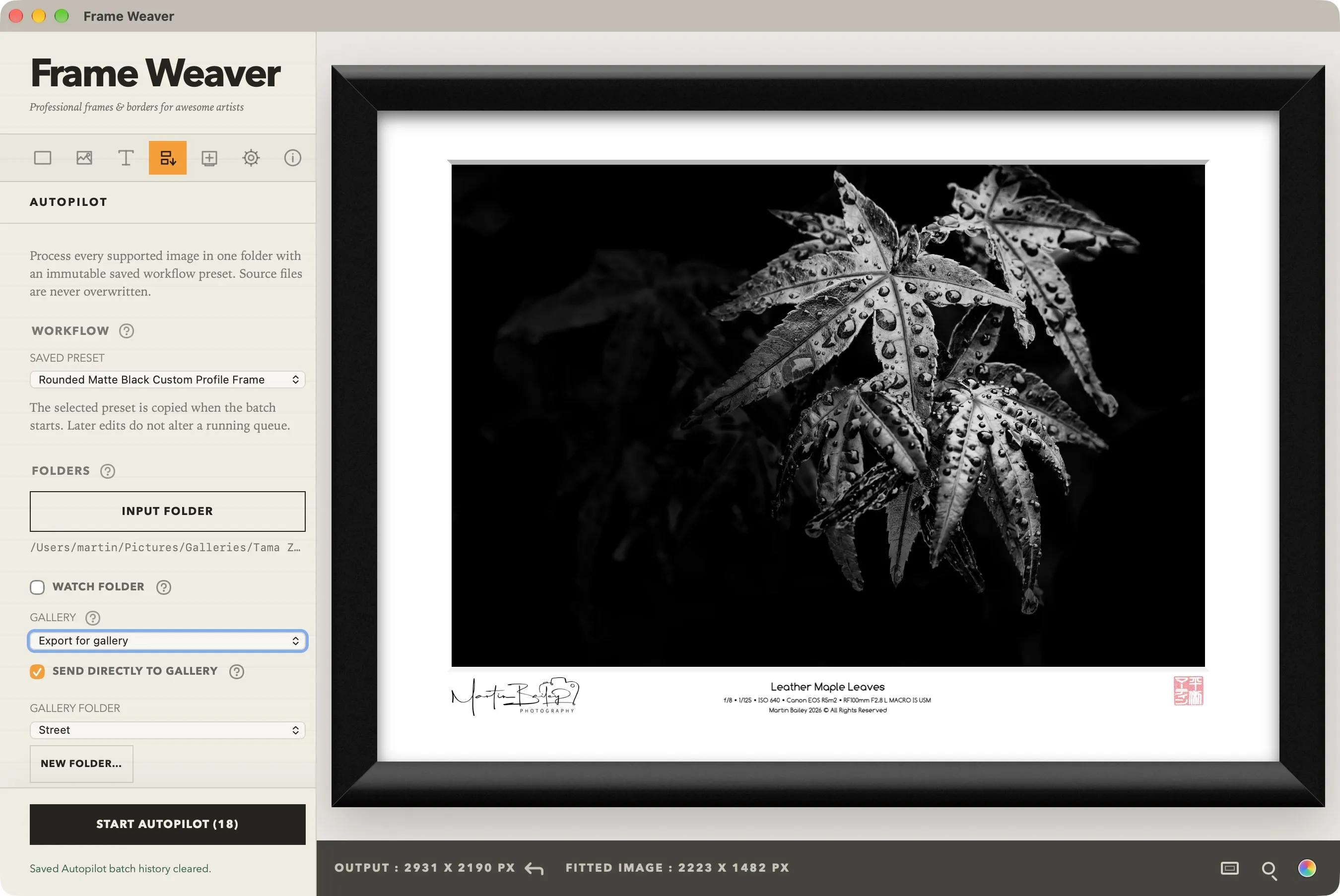
The Gallery Choice
Section titled “The Gallery Choice”Under Watch Folder (under Images and output on a phone), the Gallery choice has three settings:
- Framed images only: Autopilot works as it always has, and makes no pieces.
- Export for gallery: Autopilot makes a gallery piece of each image and writes no framed image.
- Export with frame and for gallery: Autopilot writes the framed image and makes a gallery piece of it.
The Gallery choice works with Watch Folder, so every image dropped into a watched folder can arrive in your library without you touching it.
Where the Pieces Go
Section titled “Where the Pieces Go”With either gallery setting chosen, Send directly to gallery decides where the pieces go.
- Ticked: each piece is sent to your library as it is made, into the folder chosen below the checkbox. Choose one of your library folders, or type a name in New folder and press Create folder. Output folder is shown only when framed images are also being written.
- Unticked: each piece is written as a
.fwgallerypackage to the output folder, for you to add in the Main Console.
On iPhone, iPad, and Android, pieces always go straight to your library, so there is no checkbox: choose the folder, and Autopilot sends them there.
If the chosen folder is no longer in your library, the folder choice returns to Your library (no folder).