The Main Console
The Frame Weaver Pro Main Console is where you manage your pieces, your Galleries, and your account. Open it with Console in Frame Weaver Pro, or at gallery.fictionloom.com/console.
Six tabs divide it:
- Galleries: your Galleries, and a new Gallery. Until you have chosen your address, it is asked for here first.
- Pieces: your library of pieces, in folders.
- Assets: the logos, and the smart panel screens and PDFs, you have uploaded.
- Website: your address, your icon, and showing your Galleries on your own website.
- Settings: the email address you are signed in with, and the storage you use.
- Backups: backing up your Galleries and library, and restoring them.
The Console opens on the tab you last used. Until you have agreed to the Content Agreement, it is shown above the tabs.
Light and Dark
Section titled “Light and Dark”Auto, the sun (Light) and the moon (Dark), at the top right of the Main Console and of the Gallery Console, choose how the consoles look, as the same buttons do in Frame Weaver. Auto follows your computer’s or phone’s own light or dark setting, and changes when it does. Light uses Frame Weaver’s own colors. The choice is kept on that device and is the same in both consoles. A Gallery’s visitors see it as always, whichever you choose.
Scheduled Maintenance
Section titled “Scheduled Maintenance”On the rare occasions the Galleries must close for maintenance, you are emailed ahead of time, and every console shows a notice at the top with the times, in UTC and in your own time. Shortly before the Galleries close, 30 minutes and a minute before, the notice turns into a reminder to save your work; visitors walking a Gallery are told too. While the Galleries are closed, their addresses show a page saying so, and open again by themselves when the work is done. What you saved is not affected.
The Content Agreement
Section titled “The Content Agreement”Before you add pieces to your library, hang pieces, or publish a Gallery, read the Content Agreement and agree to it. Until then you can build and arrange Galleries, and the Main Console and Gallery Console say what is waiting for your agreement. Read and agree opens it.
Your Address
Section titled “Your Address”Your Galleries live under a name of your own, which visitors see in every address: gallery.fictionloom.com/yourname. Choose it carefully: it cannot be changed, and keep in mind that this is a name to represent all of your Galleries, not just one. Your name, your initials, or your company name are good choices.
Until you have chosen it, Choose your address is at the top of the Galleries tab, so that it is the first thing you do. Type the name and choose Choose. A Gallery cannot be published without it, and your icon and the codes for your website wait for it too. Once chosen, it is shown at the top of the Website tab.
Your Account and Storage
Section titled “Your Account and Storage”The Settings tab shows the email address you are signed in with, under Your account.
Its Storage section shows how much of your storage allowance your pieces, logos, screens, and loading images use. Pieces in the trash count until they are removed. A piece counts with the smaller copies the Gallery makes of it for showing it from across a room, a little more than the package you sent.
Your storage allowance is your plan’s: 10 GB with Frame Weaver Pro, and 10 GB more for each step up; see Your Plan: Storage and Transfer.
Pieces
Section titled “Pieces”Your library holds every piece you have added, filed in folders. Every piece is filed in a folder, or in All pieces at the top.
- Find a piece by its title, in every folder searches the whole library.
- Make a folder by typing its name and choosing New folder. Move folder to…, Rename, and Delete manage folders.
- ↻ (Refresh) shows what has arrived since the page was opened, such as pieces just sent from Frame Weaver Pro.
- Trash holds deleted pieces. They can be put back, and are removed for good after 30 days; until then they count against your storage.
- Under each piece’s thumbnail is where it hangs: the Gallery and the wall, such as “Greenland · North wall”. A piece on more than one wall shows Hung where?, which lists them all when pressed, and when the pointer rests on it. A wall marked “(as published)” is one you have taken the piece down from without publishing since, so visitors still see it there.
- Delete now… for a piece that hangs in a Gallery says where, and asks whether to take it down from there and delete it anyway. Taken down, it goes from each Gallery as you have arranged it and from what visitors see, at once; nothing else you have not published goes with it.
Adding Pieces
Section titled “Adding Pieces”Pieces sent with Send to gallery arrive by themselves. To add .fwgallery
packages:
- Open the folder the pieces should go in.
- Drop the packages onto the drop area, or press Choose Files and pick them.
- Leave Skip files with the same name as a piece already here ticked to avoid duplicates.
Galleries
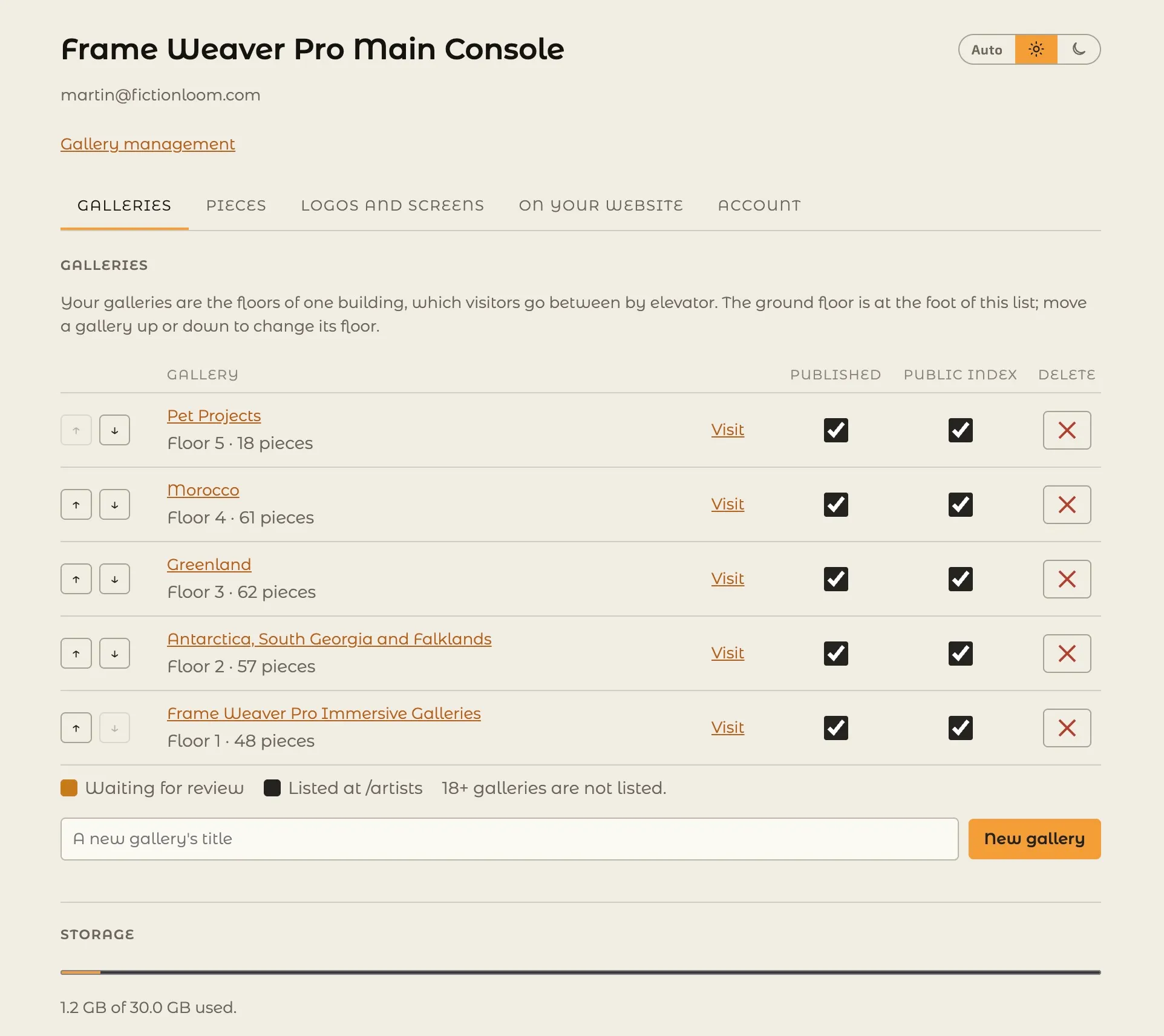
Section titled “Galleries”The Galleries section lists your Galleries as the floors of your building, with the ground floor at the foot of the list. From here you make a new Gallery by name, open a Gallery in its Gallery Console, and move Galleries up and down to change their floors.
Beside each Gallery you may see:
- Not a floor: it has no elevator. Put an elevator in one of its walls in Space.
- Not a floor until it is published, or until it is published again.
- Waiting for a moderator’s review, or Taken down by moderation: a Gallery taken down cannot be published until it is released.
A Gallery rated 18+ is not listed in the public index. See The Gallery for age ratings.
Assets
Section titled “Assets”The Assets tab lists your logos, and the screens your panels show, pictures and PDFs such as ebooks, each with where it is in use: the Galleries it is in, marked “(draft)” where it is only in a Gallery’s draft, or “(published only)” where visitors still see it but the draft no longer has it.
Delete removes one, after asking. If it is in use, you are told where, and asked whether to take it down from every Gallery that uses it and delete it. A published Gallery changes for its visitors at once; nothing else waiting in its draft is published with it.
Loading images are not listed: one that no Gallery uses is removed by itself each night.
Your Icon
Section titled “Your Icon”On the Website tab, below your address, Your icon sets the small picture a browser shows in its address bar and tab when someone visits your Galleries, and on a phone’s home screen when a visitor adds one there. Choose Upload an icon and pick a square picture: PNG, JPEG, WebP or SVG. It is kept as a 256-pixel square, a picture of another shape fitted within it. Visitors see a new icon within five minutes. Remove takes it away. Without an icon of your own, your Galleries show the site’s.
Your icon is shown to the public, so it waits until you have agreed to the Content Agreement, and it is kept under your address, so choose that first. A backup does not include your icon: after restoring one, upload your icon again.
Backups
Section titled “Backups”The Backups tab makes and restores backups. A backup is one file holding your Galleries, the pieces in your library, your logos, screens, and loading images, your floor plans, and your folders. Pieces in the trash are left out.
To make and keep a backup:
- Choose Prepare backup. A large library can take a while, and you can leave the page and come back.
- When it is ready, choose Download backup, and keep the file somewhere safe.
You can download a backup up to 12 times in a calendar month. A backup that fails to prepare does not count. When the limit is reached, the Main Console says so; try again next month.
To restore from a backup:
- Choose Restore from backup and pick the backup file.
- Anything already in your Galleries is kept, and only what is missing is added.
- If the restore stops before it finishes, run it again with the same file: it carries on, keeping what is already there.
If you have no Gallery address yet, for example because your subscription ended and you have come back, the backup’s address is offered. If it has been taken since, choose another.
Every effort is made for a backup to be restored by later versions of Frame Weaver Pro Immersive Galleries, but this cannot be guaranteed for every future version. A backup made by a newer version cannot be restored by an older one.