Frame Weaver Pro: Sending Work to Your Gallery
A piece reaches your Gallery library in one of two ways. Send to gallery
sends it straight there. Package to folder writes it to your computer as
a gallery package, a .fwgallery file, which you add to your library later
in the Main Console.
A piece carries the framed image, its frame’s shape and depth, and the photograph’s metadata, so that in the Gallery it hangs at its true size with a frame that stands off the wall.
Gallery Wraps
Section titled “Gallery Wraps”A piece made as a gallery wrap in Frame Weaver hangs in your Gallery as a canvas on its stretcher: no frame, its face standing off the wall by the wrap’s depth, and its shadow falling from that depth. Its sides are as you set them in Frame Weaver.
- Image mirror: each side shows the image’s own edge reflected round the corner, as a printed wrap does. Captions and graphics stay on the face and are never reflected onto the sides.
- Color: canvas in the side color, with a fine weave.
Side brightness lights the sides in the Gallery as it does in Frame Weaver’s turned preview, so that a side turned away from the light is shaded rather than dark. A wrap made for Print hangs as its face, at the size it will be once stretched: the depth and bleed printed round it become the sides.
The Export Buttons
Section titled “The Export Buttons”With Frame Weaver Pro active, the export area has two rows.
- On Mac and Windows: Export framed image and Send to gallery, then Package to folder and Console.
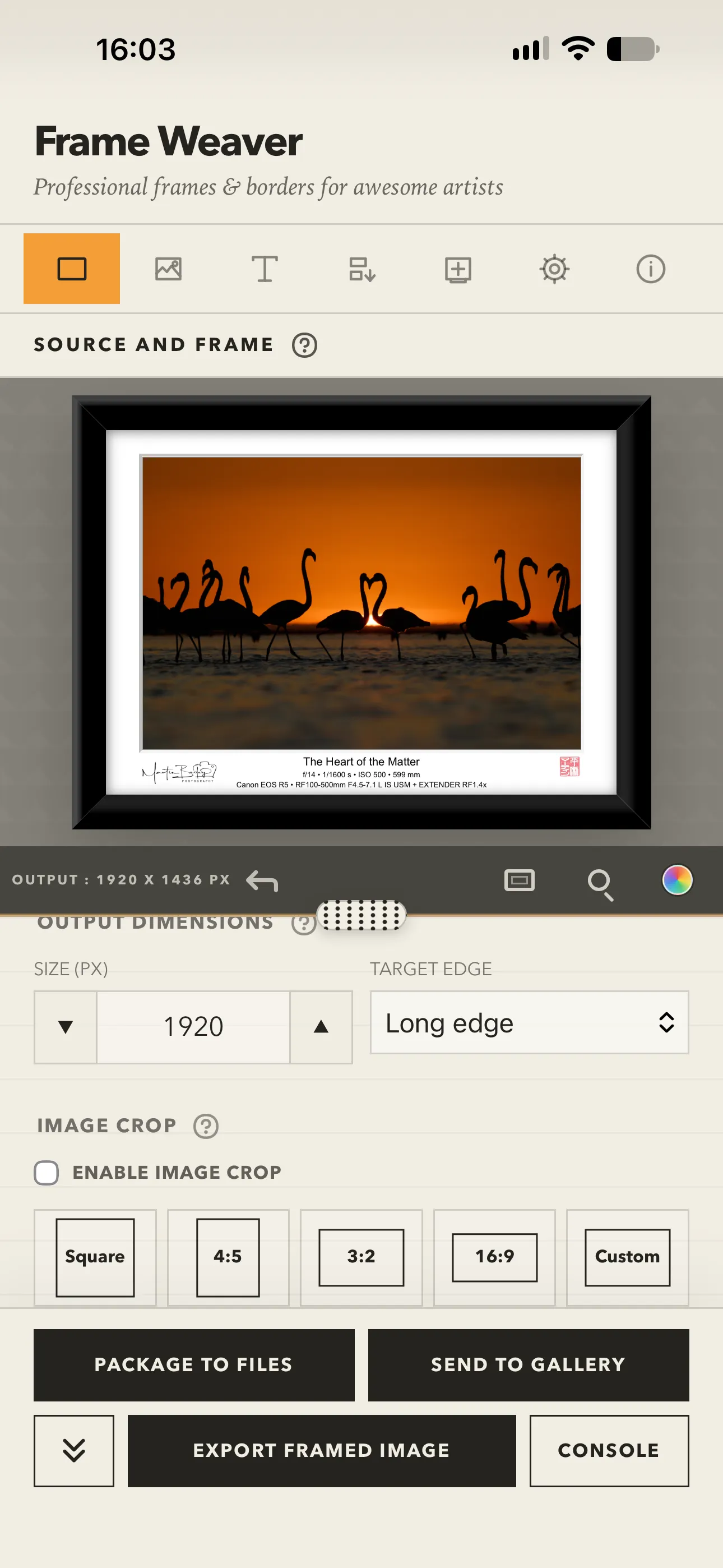
- On iPhone, iPad, and Android: Package to Files and Send to gallery, then a double-chevron button, Export framed image, and Console.
On a phone, the double-chevron button folds away the row with Package to Files and Send to gallery to give the preview more room, and brings it back. Its chevrons point up while the row is hidden. Frame Weaver remembers which way you left it on each device.
Sending a Piece to Your Gallery
Section titled “Sending a Piece to Your Gallery”- Frame your image as you want it to hang.
- Choose Send to gallery.
- Choose the library folder the piece goes in, or type a name to make a new folder.
- Frame Weaver tells you when the piece is in your library.
The folder offered first is the one you last sent to, including one you have just made with New folder. If that folder is no longer in your library, Your library (no folder) is offered instead. A send always goes to the folder shown.
Writing a Gallery Package
Section titled “Writing a Gallery Package”Package to folder (Package to Files on a phone) writes a .fwgallery
package named after the image, in your output folder. If a package of that
name is already there, Frame Weaver asks before replacing it. Add packages
to your library by dropping them onto the Main Console’s Pieces section; see
Adding Pieces.
Opening the Console
Section titled “Opening the Console”Console opens the Main Console in your web browser, already signed in, with nothing to type. The sign-in it carries works once and for five minutes, so press Console again whenever you need to sign in another time.