Visiting a Gallery
This is what your visitors see and do, and what you see as you walk through your own Gallery.
Arriving
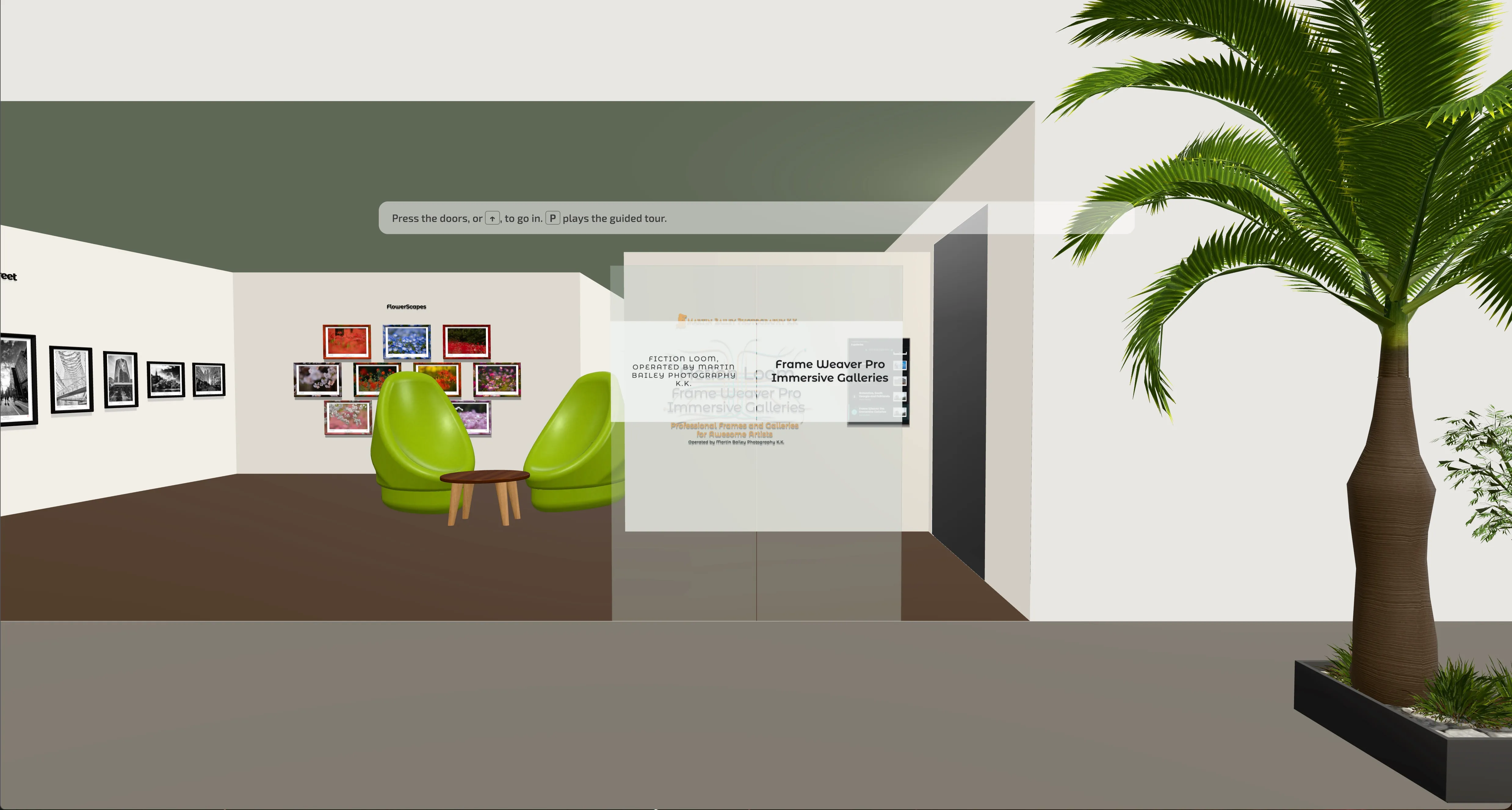
Section titled “Arriving”A Gallery with street doors begins in the street, on brick paving in front of a marble-clad building: the doors carry your name and the exhibition’s title, and planters may stand to either side of the door. Visitors press the doors, or ↑, to go in, or P for the guided tour. Before going in, they can turn on the spot to look at the street’s view all round, by dragging, with ← →, or with the right stick, and look down with Shift and ↓, though not up. Inside, walking into the street doors while facing them opens them and takes the visitor back out to where the visit began; walking past them, or backing into them, does not. A Gallery without street doors begins inside, looking into the room, or at its elevator, depending on how you set it up; see The Entrance.
A Gallery opens as soon as the pieces a visitor will see first have arrived; the rest follow, nearest first. On a computer, each piece in view is shown in as much detail as the screen can show it from where the visitor stands, a step or two ahead of them: across the room as a small picture, nearer at half the full detail, and at full detail once it covers more than half the width of the screen. So pieces are already sharp as the visitor comes to them, even while they keep walking, and nothing larger is fetched than the screen needs. Only what the visitor is looking at is sharpened: pieces passed while looking ahead keep what they have. A computer with a touch screen attached counts as a computer. On a phone or tablet, the piece in front and one either side are fetched at full detail. A wide panorama stays sharp while the visitor walks along it. From the street, the doors open once the room inside is ready; if that takes more than a moment, the visitor is told the doors will open shortly. On a computer, once every piece of a Gallery has arrived, the thumbnails of your other Galleries are fetched too, so that the elevator opens on them sooner. That counts toward your transfer, as any visit does, and is skipped when a visitor’s browser asks to save data.
Weaves, the HUD
Section titled “Weaves, the HUD”Communication with and help for the visitor is relayed via Weaves, the HUD, or Heads-Up Display. Weaves will introduce himself to visitors, starting with how to walk about and how to play the guided tour, and that a game controller works too, once any of its buttons is pressed.
Walking and Looking with a Keyboard and Mouse
Section titled “Walking and Looking with a Keyboard and Mouse”- ↑ ↓ walk forward and back, and ← → turn.
- Hold Shift with the arrow keys to step sideways, or to look up and down.
- Press the floor to walk there, press a piece to go to it, and drag to look around.
- R walks at a relaxed pace, half the usual, and Q at a quick one, twice the usual. The same key again returns to the usual pace.
- Z crouches, bringing your eyes about 50 cm lower to look at things from below. You can walk and look about while crouching. Z again stands you up, and so does sitting in a chair or stopping at a piece. The HUD says how to stand the first time you crouch on a visit, and not again.
- T shows two thumb-sticks for the mouse, smoother than the arrow keys: the left one walks and steps sideways, and the right one turns and tips your head. T again puts them away.
- H, or the HUD button at the top right, shows these shortcuts.
Walking and Looking with a Game Controller
Section titled “Walking and Looking with a Game Controller”A game controller with two thumb-sticks, such as an Xbox, PlayStation or Switch Pro controller, moves through a Gallery as smoothly as the sticks on a phone, with both sticks at once. It suits recording a video of a walk through a Gallery. It works on a computer, an iPhone or an iPad, connected by cable or Bluetooth.
- Press any button on the controller once the Gallery has opened. The browser shows a controller to a page only after one of its buttons has been pressed.
- The first time, the Gallery asks which kind of controller it is: Xbox, PlayStation or Nintendo, which includes the Switch and Switch 2. Press A on the controller, or Cross on a PlayStation one, or choose with the mouse or the X, P or N key. A Nintendo controller’s A sits where an Xbox controller’s B does, so the Gallery needs to know. The answer is kept on that device for that controller.
- View (Create on PlayStation, Minus (−) on Nintendo) crouches, as Z does, and the same again stands you up. Hold it for a second, or press K on a keyboard, and the Gallery asks again which kind of controller it is, to change the answer.
- When the Gallery asks a question, such as whether to show its help, A (Cross) answers Yes and B (Circle) No.
- The left stick walks forward and back, and steps sideways. The right stick turns, and tips your head up and down. A slight push moves slowly, and a full push at the usual pace; movement starts and stops smoothly.
- Press the left stick in for a relaxed pace, slower walking and looking, and the right stick in for a quick pace. The same again returns to the usual pace.
- The direction pad walks and turns as the arrow keys do. In the elevator, up and down on the direction pad or either stick choose a floor, A goes there, and B stays on this floor.
- To choose from a list of galleries on a wall, turn to face it and press A. Up and down on either stick or the direction pad then move through the galleries, A goes to the one chosen, and B lets go of the list.
- A (Cross) walks you close up to the nearest piece, at your chosen pace, and again plays the guided tour. At the doors it goes in, and in the elevator it goes to the floor chosen. Sitting in a chair or watching the video, it stands you up where you are and pauses the video.
- To press something as a click would, turn until it is in the middle of the view and press A: the elevator’s doors, the street doors, a chair to sit in, or the video’s screen. When you stop on one, a small ring shows in the middle for a moment.
- B (Circle) goes back, as Esc does: from before the elevator back to the pieces, and in it, staying on the same floor.
- X (Square) shows the labels, and Y (Triangle) plays the guided tour. The same button again hides the labels, or stops the tour; any other button leaves the tour too.
- The shoulder buttons (LB and RB, L1 and R1, L and R) go to the piece before, or the next. The triggers (LT and RT, L2 and R2, ZL and ZR) make the lens wider or narrower.
- Menu (Options, Plus (+)) shows what each button does, named as they are on your controller. G on a keyboard does the same.
Walking and Looking on a Phone or Tablet
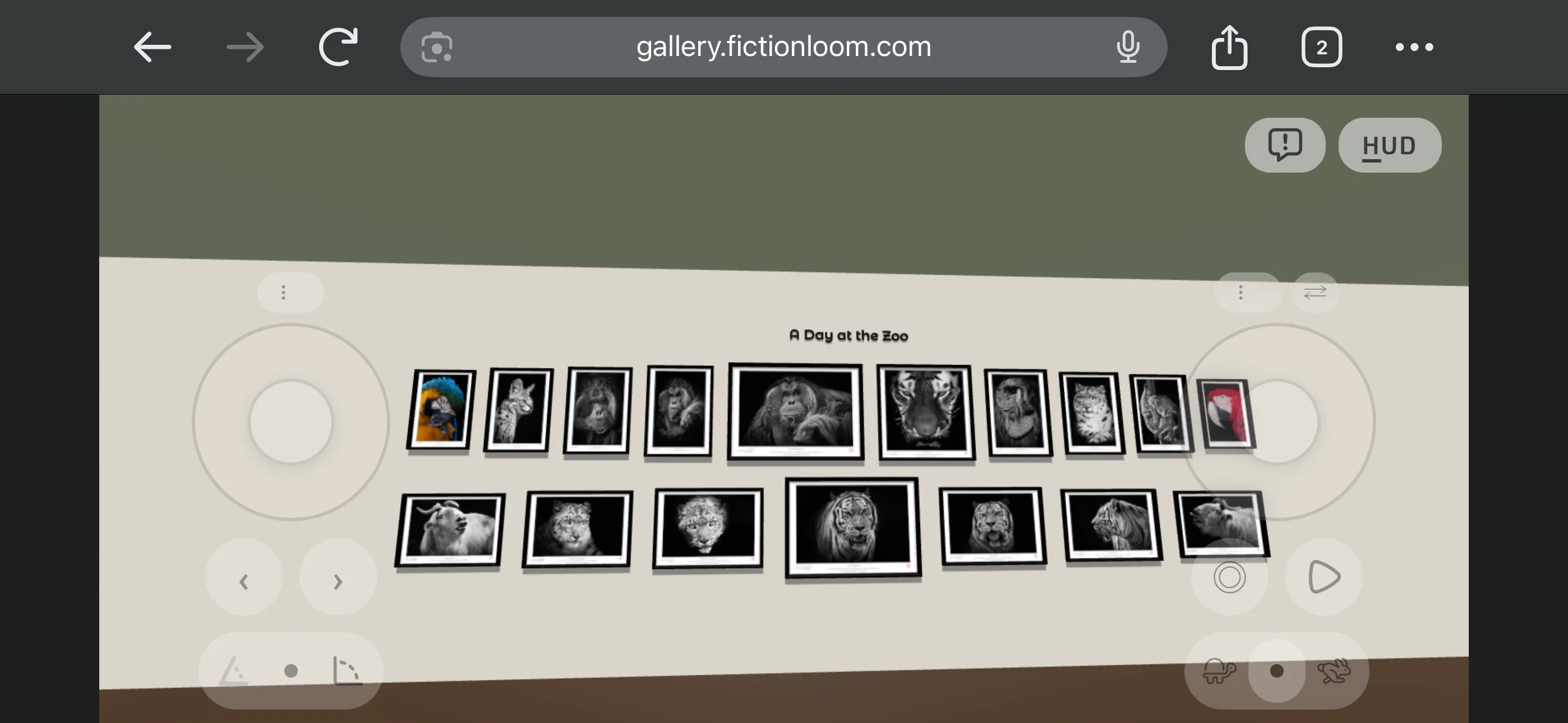
Section titled “Walking and Looking on a Phone or Tablet”- Push the left stick to walk forward and back, and to the side to step sideways. Push the right stick to the side to turn, and up or down to tip your head.
- Drag a stick by its handle to wherever suits your thumb, or swap their sides with ⇄. Once used, they keep out of the way until touched. On a small screen held sideways they are drawn smaller, to fit.
- Drag the view to look around. Tap the floor to walk there, and tap a piece to go to it.
- The turtle and the rabbit set the pace: the turtle slows walking and looking, the rabbit quickens walking, and the dot between them is the usual pace.
- The HUD button at the top right shows this help again.
- A swipe that starts at the edge of the screen stays in the Gallery rather than taking the browser back a page. If the browser goes back all the same, or Back is pressed, the visitor stays the first time and the HUD says that going back again leaves.
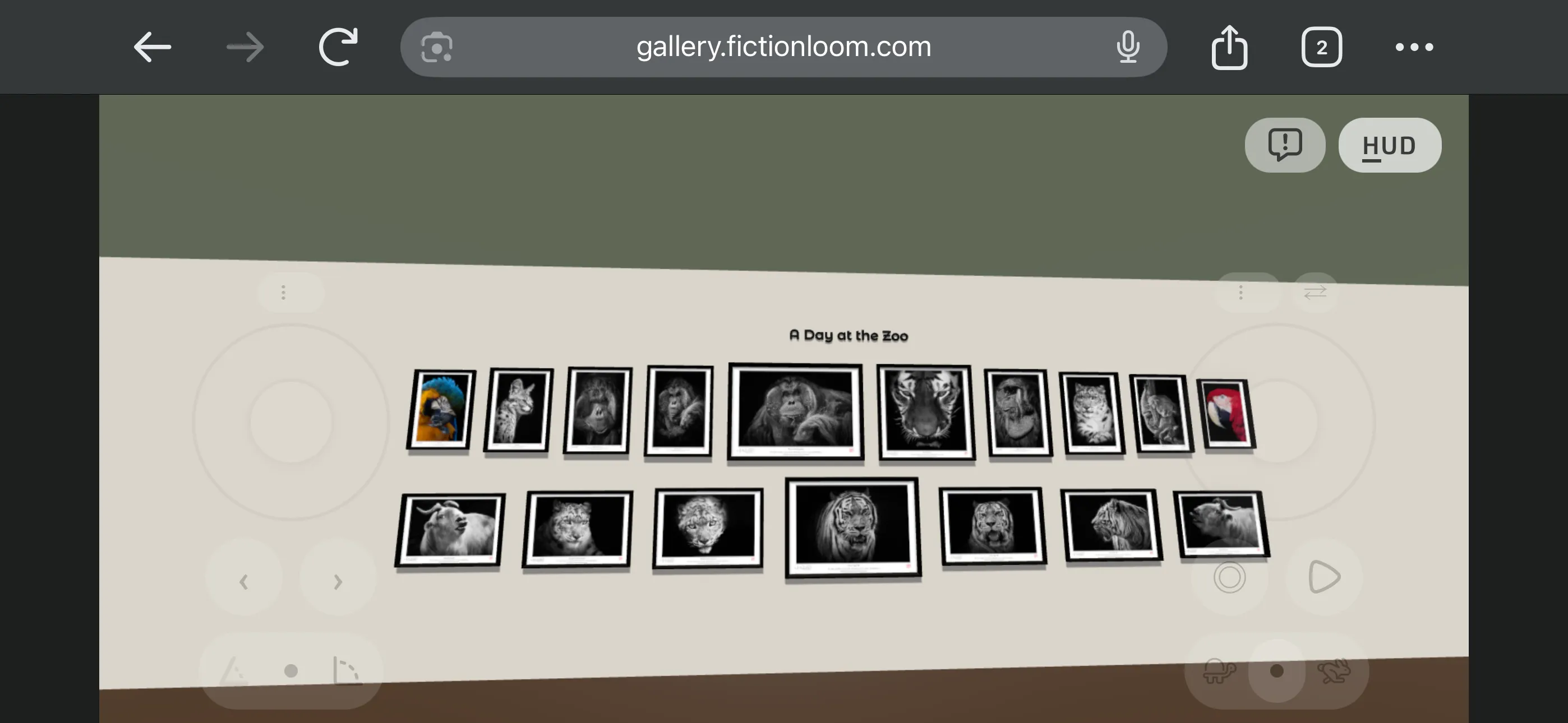
- If you tap the screen, the controls become slightly more opaque so that you can see them. When walking around, they almost completely disappear.
Looking at the Work
Section titled “Looking at the Work”- < > (‹ › on a touch screen) walk to the piece before, or the next.
- Space (◎) walks you close up to the nearest piece, at your chosen pace, so that it fills the view. Space again plays the guided tour; the first time, the HUD says so. Sitting in a chair or watching the video, Space stands you up where you are and pauses the video.
- O shows the whole room.
- L looks along the wall, one way and then the other.
- B shows the labels beside each piece: title, description, and shooting data.
- [ ] change the lens, wider or longer.
The Guided Tour
Section titled “The Guided Tour”Space at a piece seen close up, or P anywhere (▶ on a touch screen), plays the guided tour. It walks from piece to piece in the order of your route, pausing at each for the Auto-play Interval you set, close up or from further back as the visitor was when it began. Any key, Space included, leaves the tour, and the visitor carries on from there. On a touch screen, ◎ during the tour switches between the near and far views, and any other touch leaves it.
Sitting and Watching
Section titled “Sitting and Watching”Press a chair to walk round to it and sit down. Seated, ← → turn your head and ↑ ↓ stand you up; on a touch screen, the left stick stands you up.
In a room with a video wall, press the screen to watch the video. In a room with chairs you are seated in the front row, facing the screen; in a room without chairs you stand before it. Then the video plays. Come close to the screen without pressing it, and you are asked whether you would like to watch. An arrow key pauses the video, and leaving the room ends it.
Room Colors
Section titled “Room Colors”In the Gallery Console, W, F, and C step through the colors of the walls, the floor, and the ceiling, and the color’s name is shown for a moment. Visitors can do the same only if you allow it; see Room. A visitor’s change is theirs alone and is never saved.
The Elevator
Section titled “The Elevator”The elevator goes between the floors of your building. Visitors walk into it and choose a floor from its panel, with ↑ ↓ and Enter, or by pressing it. A gallery list on a wall, a panel that lists your Galleries, can also take visitors to a floor; see Panels.
As the car arrives, a chime sounds just before its doors open: one chime for a car that went up, another for one that came down. The elevator’s doors, the street doors, and a room’s door all make a light sliding sound as they open and as they close. Browsers let a page make sound only after the visitor has pressed or clicked something.
Reporting a Gallery
Section titled “Reporting a Gallery”The button beside HUD, at the top right, lets a visitor report a Gallery that breaks the Content Agreement. Every report is reviewed.