Installation and Activation
Install MXD
Section titled “Install MXD”Install MXD using the installer for your platform.
Depending on your platform and install choices, this may include:
- The standalone app.
- The VST3 plugin.
- The AU plugin on macOS.
- Native Instruments KONTROL S-Series Templates for MXD.
Activate Your License
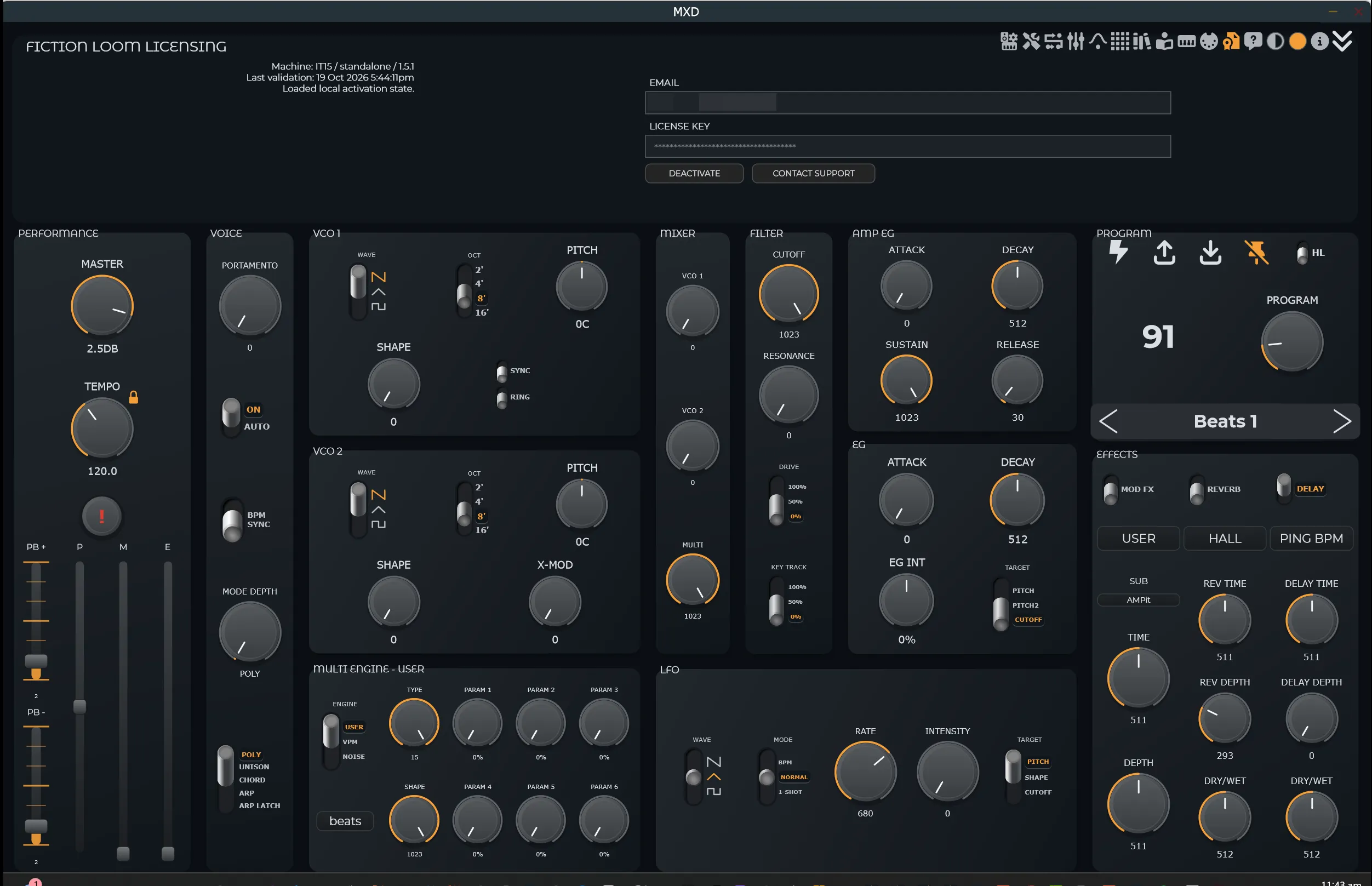
Section titled “Activate Your License”- Open MXD.
- Click the Licensing icon in the right-side icon rail.
- Enter the email address used for purchase.
- Enter your license key.
- Click the activation button.
Once activated, MXD stores a local entitlement file and periodically refreshes the activation state with the Fiction Loom licensing service.
Your license can be used on up to three computers for the same user, and can be deactivated to move to another computer up to 10 times in one calendar year. If you need to deactivate more than 10 times and your license is locked, contact support and explain the situation. After consideration, we may decide to unlock your license for further activations.
First Launch Checklist
Section titled “First Launch Checklist”- Connect the Minilogue XD and power it on.
- Select the correct MIDI IN and MIDI OUT ports.
- On macOS, choose minilogue xd KBD/KNOB for MIDI IN and minilogue xd SOUND for MIDI OUT.
- On Windows, both are called minilogue xd; often prefixed with MIDIIN2 and MIDIOUT2.
- If you are using a separate controller keyboard, select it in the CONTROLLER field.
- To use the Native Instruments KONTROL templates for S-Series Mk3 controllers, ensure that you select a MIDI channel that you will not otherwise use in your project. You may also select All and let MXD handle it.
- If you are using the standalone app, open the audio settings and select your audio device.
- Load the current program from the synth, so MXD reflects the real hardware state. On first launch, you may need to click the power icon in the PROGRAM section to connect to your Minilogue XD device.
- If using a DAW, confirm that the plugin is receiving MIDI and the hardware is responding correctly.
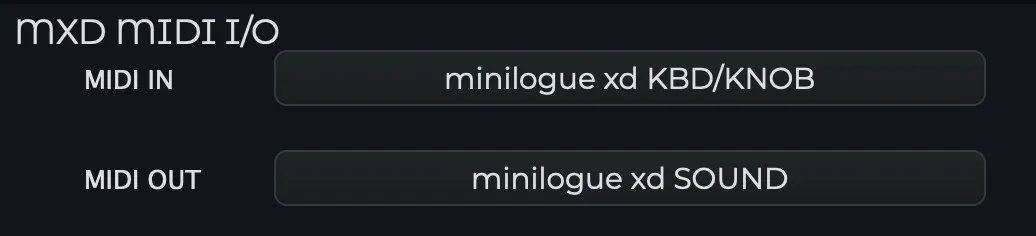
If your devices do not appear correctly, use the Refresh MIDI button and reselect the ports if necessary.