Local Libraries and Set Lists
In MXD version 1.3.0, we introduced Local Libraries and Set Lists. After creating a folder to store your Local Library in, you can either import a full KORG Program Library (.mnlgxdlib) exported using the KORG Sound Librarian or via Hardware Import, where MXD requests each program from 1 to 500 in turn, and stores the programs in the selected Local Library.
Select a Linked Slot for your Local Library, and turn on the LL switch to enable your new Local Library. MXD will jump to the Program slot you linked to, back up the program on that slot, then restore the selected Local Library program to that slot. If you move the MXD PROGRAM dial, or use the PROGRAM navigation buttons < >, you will now move between programs in your Local Library, and be able to use them, modify and save them, as though you were working directly with the Minilogue XD internal programs, but they now live only on your computer. If you make changes that you like, hit the save button, and the updated program will be stored in your Local Library.
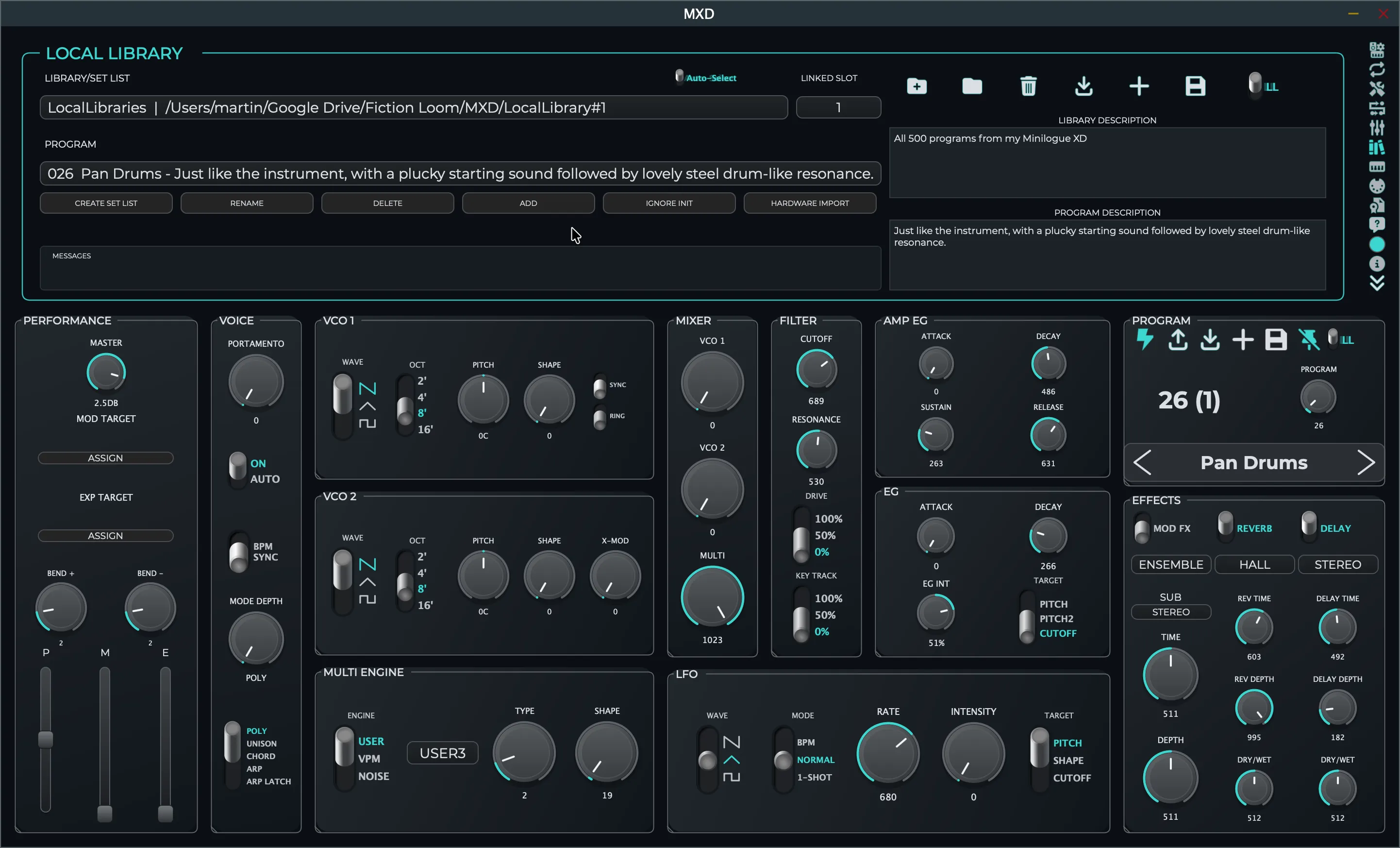
To end Local Library mode, turn off the LL switch. We’ll restore the original program for you and return to the programs stored on your Minilogue XD, which we now call the Hardware Library mode. You can also leave the LL switch active and simply navigate away from the Local Library using the PROGRAM dial on your Minilogue XD. If the new slot is not also linked to a Local Library, you will temporarily return to Hardware Library Mode until you return to a linked slot. If the LL switch is still ON when you return to a slot with a Local Library linked to it, you will seamlessly return to Local Library mode.
The Library Folder Icons
Section titled “The Library Folder Icons”Four icons beside the Local Library menu manage your library folders. From left to right:
Browse (open folder): opens the current library’s folder on your computer.
New: creates a new Local Library in a folder you choose.
Choose Existing (folder with a magnifier): adds a library you already have, for example one copied from another computer. On Windows, open the library folder and select its mxdlibrarysettings.xml file.
Move (folder with an arrow): moves the current library to a new location.
Importing several programs at once. The Import button accepts several files at once: in the file dialog, select the files you want, or press Ctrl+A (Cmd+A on a Mac) to select every file in the folder. Each program from a .syx or .mnlgxdprog file goes into the next free slot, so importing never replaces a program already in the library. A .mnlgxdlib file is a whole library, and its programs keep their own slot numbers, replacing what is in those slots. When all 500 slots are full, MXD stops and tells you how many programs it imported.
When a Library Goes Missing
Section titled “When a Library Goes Missing”If a library’s folder has been moved, renamed or deleted, MXD shows it in red in the Local Library menu, adds a red line to MESSAGES, and switches Local Library mode off until you relink or create a library. Browse and Move show “Please relink or create a local library first.”
To relink it, select the missing library (or click Browse) and choose Locate, then find the library in its new location. MXD relinks it in place: it keeps its position in the list and its Linked Slot, and the broken link is removed. If the library you pick has a different name, MXD asks first, and you can choose again, replace the entry with the library you picked, or cancel.
Set Lists
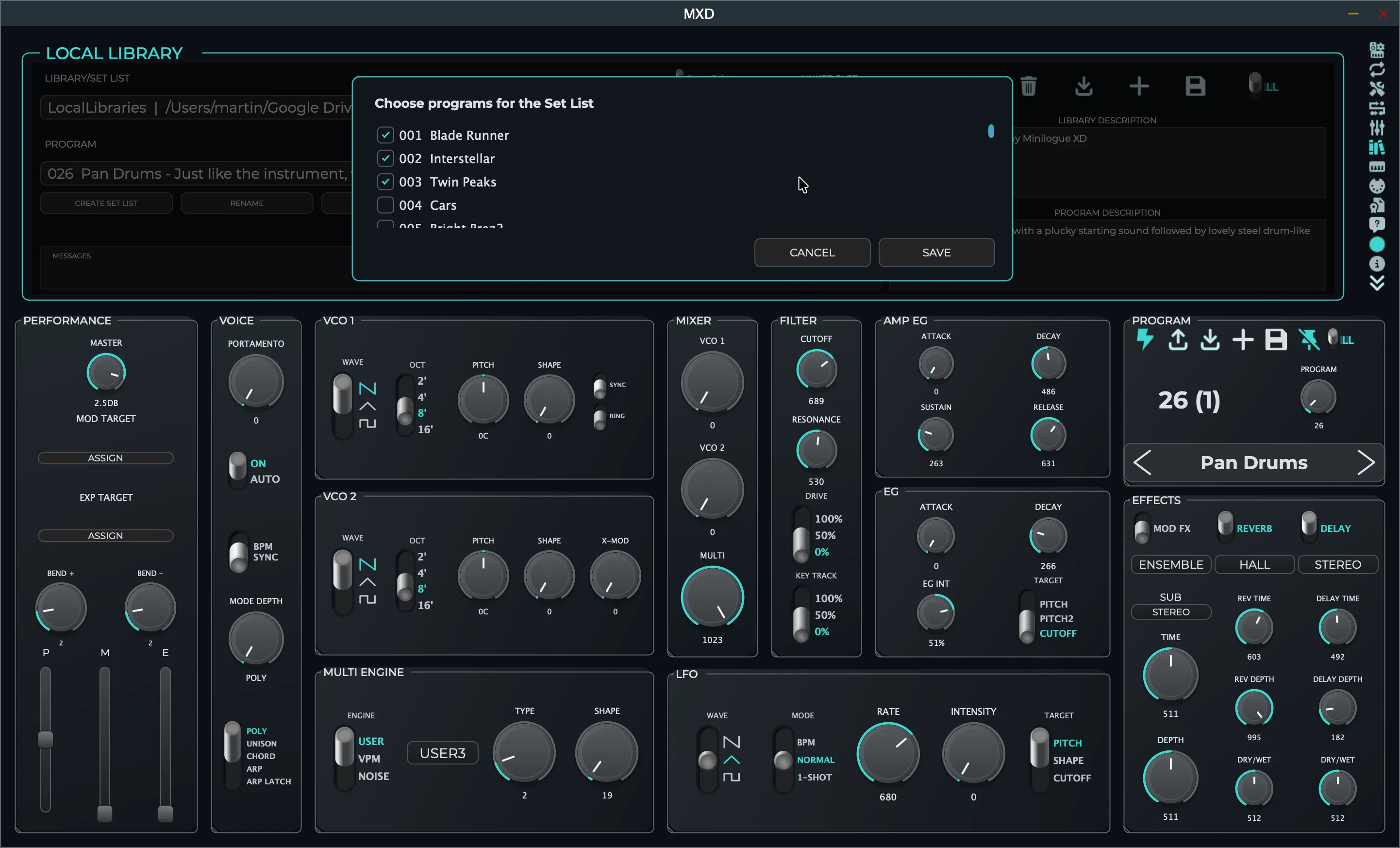
Section titled “Set Lists”After creating your first Local Library, you can create Set Lists, by clicking the Create Set List button in the Local Library settings screen, and select the programs that you want to add to your Set List from the list of programs in your Local Library.
After creating a Set List, you can reorder, add or delete programs from the list, and assign a Linked Slot, and it will be treated like a Local Library but containing a tighter selection of programs for use as a Set List, or a focused Favorites Library.
Updating a library program from the Minilogue XD
Section titled “Updating a library program from the Minilogue XD”UPDATE PROGRAM, beside the HARDWARE IMPORT button, replaces the selected Local Library program with the Minilogue XD’s current program, as MXD holds it: your changes and any new name included. The program keeps its place in the library. Select the program to update in the Local Library, switch to the hardware library, choose the program on the Minilogue XD, then click UPDATE PROGRAM and Update. In Local Library mode the current program is the library’s own, so MXD asks you to switch to the hardware library first. UPDATE PROGRAM is not available in Set Lists.
Adding the Minilogue XD’s program to a library
Section titled “Adding the Minilogue XD’s program to a library”ADD TO LIBRARY adds the Minilogue XD’s current program, as MXD holds it, your changes and any new name included, to the Local Library shown, in its next free slot. In a Set List the button reads ADD TO SET LIST and adds the program at the end. Nothing already in the library or Set List is replaced. As with UPDATE PROGRAM, use it from the hardware library: in Local Library mode, MXD asks you to switch to the hardware library first.