Playing Macros from Pads
Every Session Grid slot is also a pad. Press a pad on a drum pad controller, or a key in a keyboard split, and its Macro starts at once, from its own beginning, wherever the song is: at the start of a bar or partway through one. Pads play alongside each other and alongside the main Macro, so you can build a performance by layering Macros as you go.
Setting up a pad controller
Section titled “Setting up a pad controller”- Open MXD’s settings. In MXD MIDI I/O, set PADS to your pad controller’s port, and PADS CH to the MIDI channel it sends on.
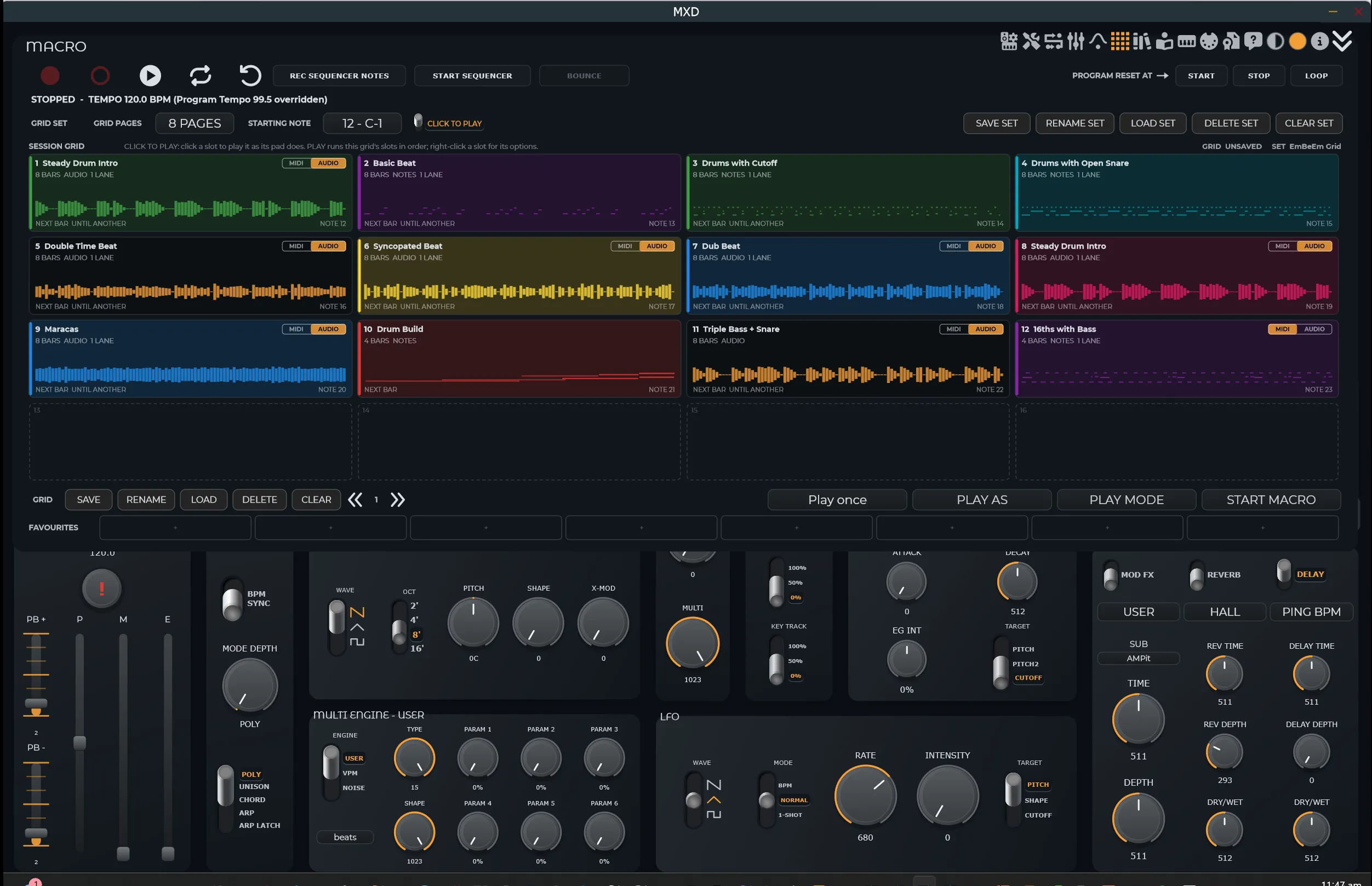
- Open the Session Grid. In the GRID SET toolbar at the top, set GRID PAGES to the number of pad banks your controller has, and STARTING NOTE to the note its first pad sends.
- Fill the slots. Each grid’s 16 slots match the 16 pads of one bank, in order: pad 1 starts slot 1 of grid 1, and so on.
For example:
- Most pad controllers have 4 pages starting at 36 (C1).
- An Akai MPD218 has 3 pages.
- A Native Instruments Maschine has 8 groups, starting at 12 (C-1).
Using a keyboard split
Section titled “Using a keyboard split”A split zone on your keyboard works too. Give the zone its own MIDI channel and set PADS CH to it. Set STARTING NOTE to the zone’s lowest key: anything from 0 (C-2) to 108 (C7). Leave PADS on NONE, as MXD already reads your CONTROLLER keyboard. With a Kontrol S-Series keyboard, don’t use channel 16, which the MXD templates use for their knobs and buttons; MXD grays it out.
Everything on PADS CH plays the pads and goes no further, so those keys and pads never play the Minilogue XD directly.
How each pad plays
Section titled “How each pad plays”Right-click a slot to choose how its pad behaves:
- Play once to Play 4 times, or Loop until stopped.
- Play Mode: Tap to start and tap to stop; Play while pressed, which stops it when you let go; or Tap to start and stop when another Macro starts playing. A slot set this way stops when another pad’s Macro starts, at that Macro’s own beat or bar rather than when its pad is pressed, so you can switch between drum beats in time. A second tap stops it too. The slot shows UNTIL ANOTHER along its bottom.
- Start Macro: Immediately, Next beat or Next bar. Immediately starts the Macro the moment you press the pad. Next beat and Next bar wait for the beat or the bar line, to keep it in time.
- Assign CC: a CC on PADS CH that also starts the slot, for pad controllers that send CCs, or to start several slots from one pad. CCs other gear commonly uses are left out of the list, and a CC another slot already uses is marked with an asterisk (*).
- Color: one of 16 colors, matching your pads. The slot shows its color and lights up while its pad plays.
Along its bottom, a slot shows how it starts, and the note and CC that play it.
Layering pads
Section titled “Layering pads”When two playing pads move the same control, the pad you pressed last wins. When it stops, the control goes back to the pad before it, or the main Macro. If nothing else drives it, it returns to the program’s value when the STOP restore switch is on. Aftertouch and the sustain pedal always return to zero, and pitch bend to center; Modulation Wheel and Expression sliders stay where they are. Each pad’s notes are its own, so stopping one pad never cuts another’s notes.
The clock
Section titled “The clock”Pads need a running clock for their beats and bars, and they start one if nothing is running:
- In the standalone app, a pad starts MXD’s own clock at the TEMPO.
- In a DAW, a pad pressed while the DAW is stopped runs on MXD’s own clock at the DAW’s tempo. When you start the DAW, its clock takes over. When you stop it, the pads stop.
PANIC stops every pad.