Sequencer / Motion Editor
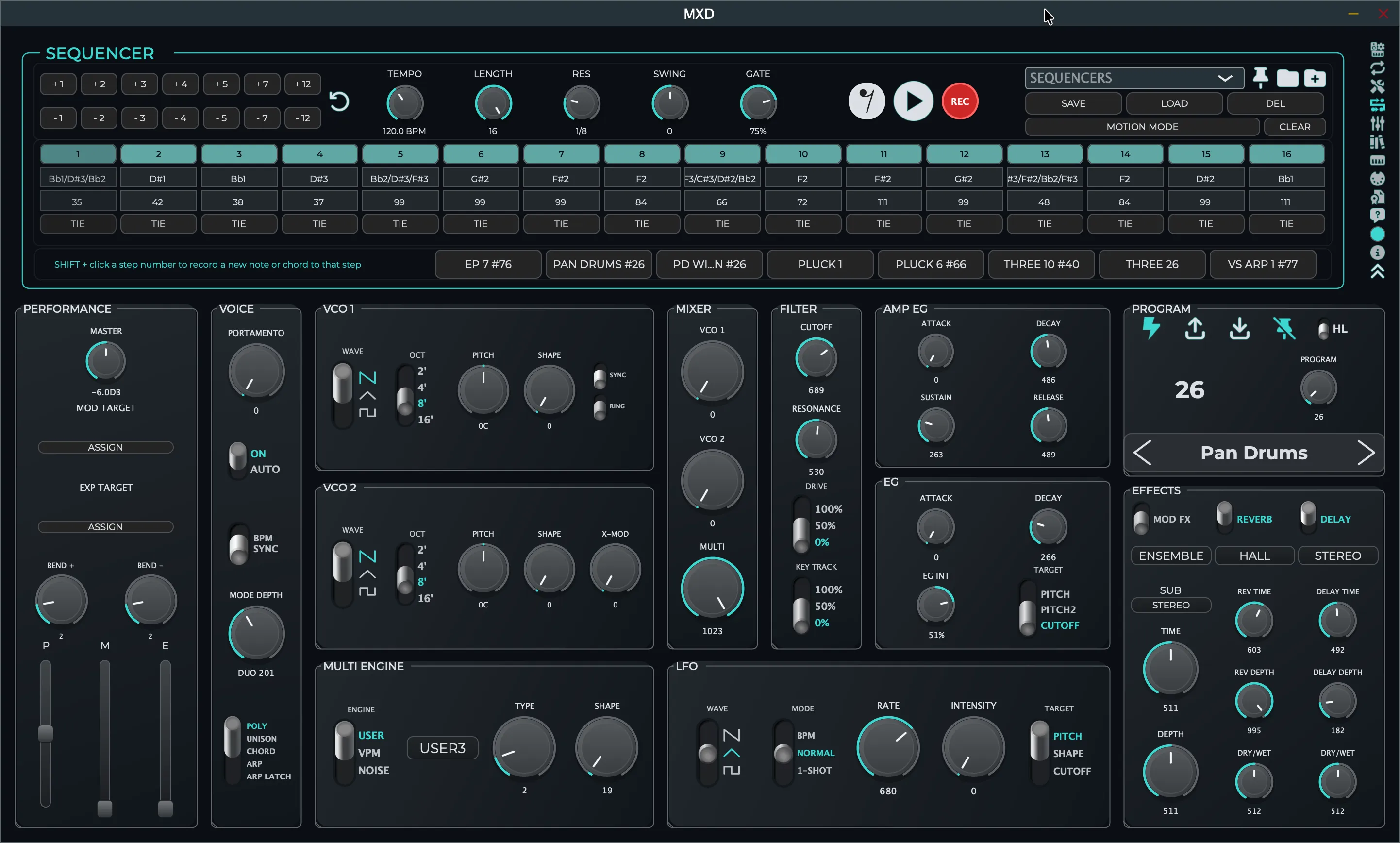
MXD includes an editor for the Minilogue XD’s internal 16-step sequencer. The sequencer header can be opened from the Sequencer icon in the header rail. It edits the current program’s sequencer data and sends changes back to the hardware edit buffer so playback can use the edited sequence. If the current program has no sequencer, you can create one or assign a sequencer that you have stored from other programs.
The workflow follows the Minilogue XD’s own sequencer concepts: step recording, step enable/disable, rests, ties, four Motion slots, and per-step Motion values. MXD presents those operations directly in the software, so you do not have to enter the hardware’s SEQ EDIT screens to make or audition those edits.
Sequencer Timing and Transport
Section titled “Sequencer Timing and Transport”The top row contains sequencer timing controls:
- Tempo
- Length
- Resolution
- Swing
- Gate
In plugin use, the DAW remains the main timing reference for the session, but the tempo control is still useful for editing and previewing the hardware sequencer. Double-click a sequencer dial to return it to its default value.
The transport button starts the Minilogue XD sequencer. While playback is running, the same button changes to Stop and gently pulses, so it is easy to notice. MXD also listens to the hardware sequencer transport and highlights the currently playing step when the synth reports playback activity.
Notes, Chords, Velocity, Rests, and Ties
Section titled “Notes, Chords, Velocity, Rests, and Ties”Each step has:
- A step button
- A note or chord field
- A velocity field
- A TIE button
The Minilogue XD is four-voice polyphonic, and the MXD records chords in a single step rather than spreading the notes across multiple steps. If Poly Chain mode is active, MXD can store up to eight notes per step for the sequencer editor workflow.
Click a step number to enable or disable that step. Disabled steps are shown as REST. When a step is tied, the following step is treated as held time for the previous note or chord. MXD dims the following step’s note and velocity text while preserving the underlying note data, so that untie/rest changes can restore the step content rather than destroy it.
Velocity fields can be changed by typing or by dragging. Drag up or right to increase velocity, and drag down or left to decrease it. MXD previews the stored note or chord while you adjust velocity.
Recording Notes
Section titled “Recording Notes”Click REC to record notes step by step. MXD waits on the current step until it receives a note or chord, writes the captured notes and velocity to that step, then advances to the next step. Click REC again to stop.
If you stop recording early, leaving an empty tail of a new sequence, MXD will shorten the sequence length to the last recorded step. If the sequence already contains material beyond the stop point, MXD keeps the existing length. For punch-in editing, SHIFT + click a step number. MXD records a new note or chord into only that step, then leaves recording mode.
Transposition
Section titled “Transposition”The sequencer includes quick transpose buttons for musically useful offsets, including semitone, larger interval, and octave moves. Use the transpose reset button to return the sequence to the loaded transposition baseline.
Sequencer Preset Library
Section titled “Sequencer Preset Library”Sequencer presets can be saved as reusable MXD sequencer files. These presets are separate from the current program slot, which makes it easy to build a small pattern library and load the same sequence into different sounds.
The sequencer library controls include:
- SAVE: name and save the current sequence.
- LOAD: load the selected sequence into the current program.
- DEL: delete the selected sequencer preset.
- Pin: pin or unpin the selected preset.
- Folder: open the current sequencer preset folder.
- Folder Add: choose another folder for sequencer presets.
Up to six pinned presets appear as quick-load buttons in the sequencer header. Long preset names are shortened in the middle, and hovering the button shows the full name.
If you save a preset with the same name as an existing preset, MXD asks whether to overwrite it.
When the MOTION MODE button is highlighted, the selected program has Motion data available. Click it to switch from note-sequencer editing to Motion editing.
Motion Mode
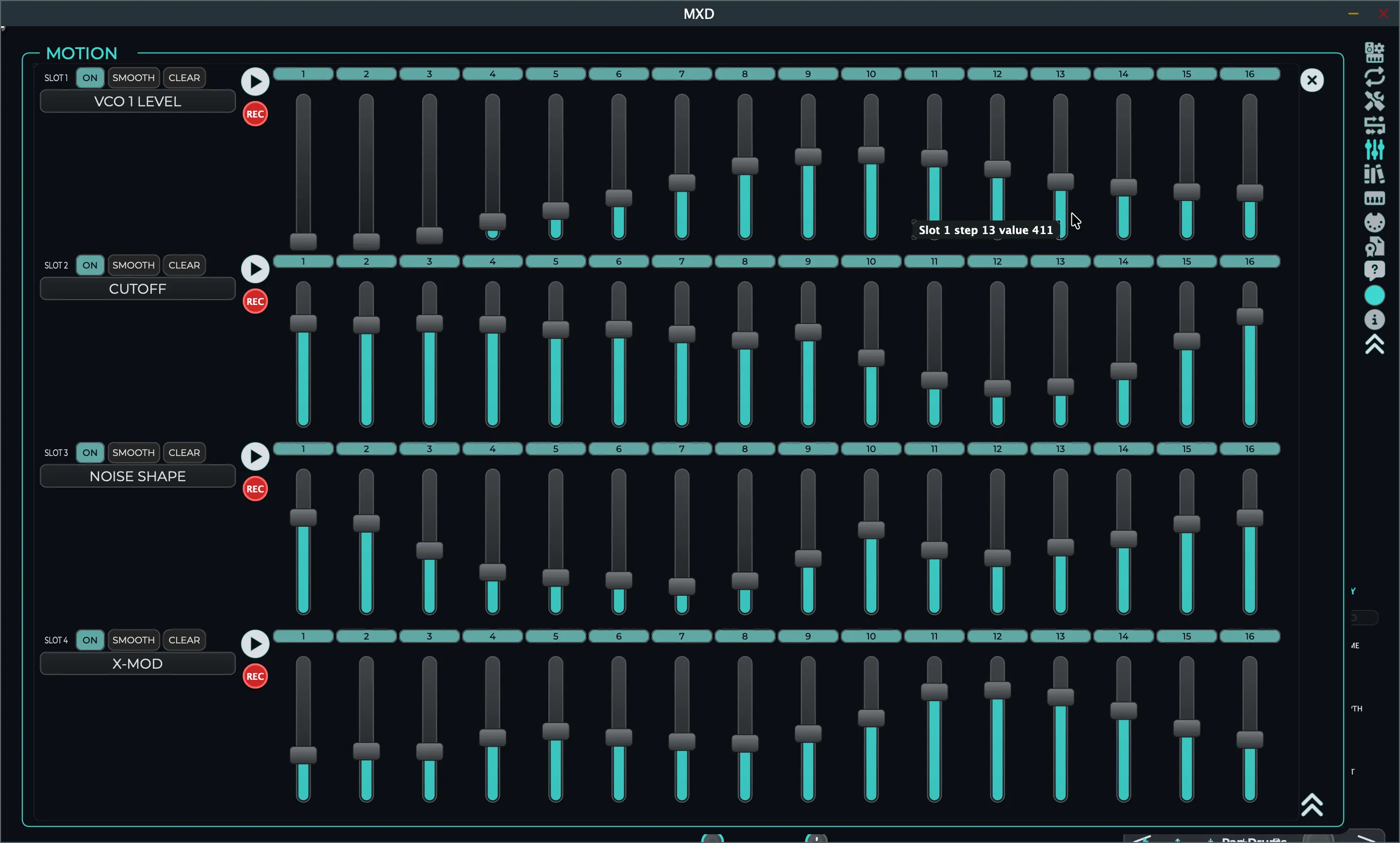
Section titled “Motion Mode”Motion Mode edits the Minilogue XD sequencer’s motion data. Open it with the MOTION MODE button in the sequencer header. Motion Mode can also be expanded when you need more vertical room.
The XD provides four motion slots. For each slot, MXD shows:
- Slot enable
- Smooth
- Clear
- Record
- Transport
- Motion parameter selection
- Per-step enable buttons
- Per-step value sliders
Choose the parameter a slot should control, then edit the step values directly or use the slot’s REC button. When motion recording is armed, MXD can start the sequencer, watch the current playback step and capture supported parameter movement into the selected motion slot. If a slot has no target yet, moving a supported parameter can assign that parameter to the recording slot.
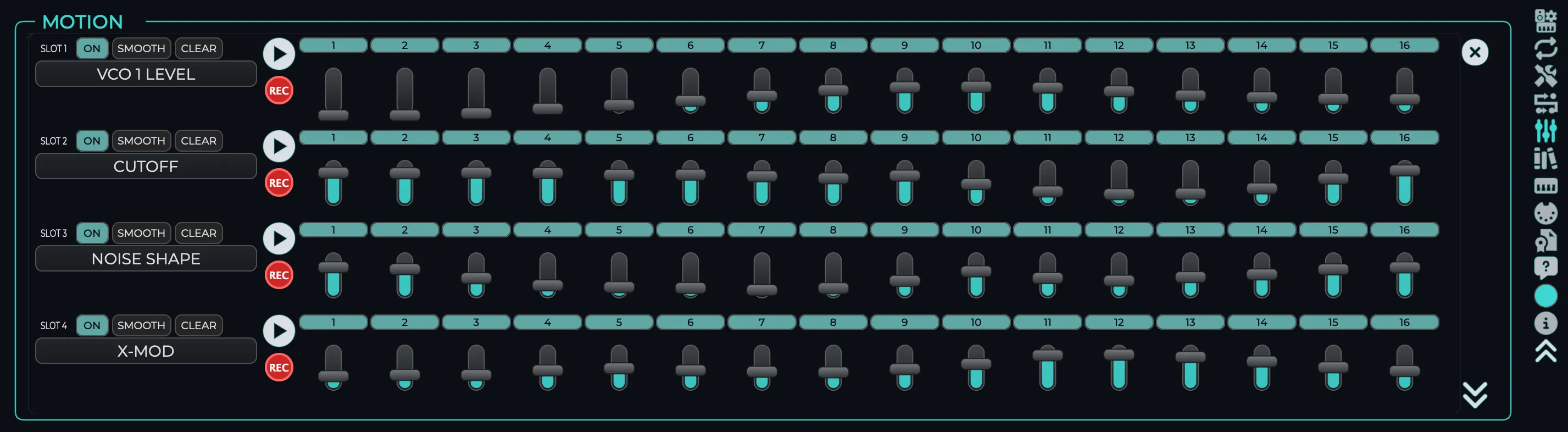
Motion slots support many of the XD’s sequencer motion destinations, including oscillator shape and pitch controls, sync/ring/cross-mod, Multi Engine controls, mixer levels, filter, envelopes, LFO, effects, pitch bend and gate time.
Like note sequencer edits, Motion edits belong to the current program’s authored snapshot inside MXD. To make them permanent on the hardware, write the program on the Minilogue XD.
Click the down-chevron icon in the compact header to expand the Motion Editor to fill the UI, allowing more granular slider adjustments when using a mouse.