Lanes and Notes
Each control a Macro moves has its own lane, named after the control and showing how many points it holds. Lanes can come from:
- MXD’s own controls
- your controller
- the Minilogue XD’s knobs
If the XD’s own Motion sequence also moves that control, the lane says “also in the synth’s Motion”. The two will compete, so you may want to clear one of them.
The NOTES row holds the Macro’s phrase: the notes you played while recording.
- MUTE silences a lane or the phrase but keeps what it holds.
- CLEAR empties it. When a lane is cleared, or an UNDO, a new take or a loaded Macro drops a lane, its control returns to the program’s value at once.
AFTERTOUCH, SUSTAIN and the wheels. Channel aftertouch played while REC or OVERDUB records becomes an AFTERTOUCH lane, from the controller keyboard or the XD’s MIDI input. It plays back as channel aftertouch to the XD, so the program’s own AFTER TOUCH setting decides what it moves.
The sustain pedal becomes a SUSTAIN lane, played back as CC 64. It is either down or up, with no glide between. Your pedal must send CC 64, the standard sustain CC; the MXD Kontrol templates assign it so. When a Macro stops, jumps or is cleared with the pedal down, MXD lifts it, and PANIC lifts it too.
The pitch wheel becomes a PITCH BEND lane, from your controller keyboard or MXD’s P slider, and plays back as pitch bend. When a Macro stops with the wheel bent, MXD centers it.
MXD’s M and E wheels become MOD WHEEL and EXPRESSION lanes, from your controller (its mod wheel for M, and for E the source chosen in MIDI I/O), from the M and E sliders, or in a DAW from the track’s MIDI. They play back as the sliders do, through the Performance Mapping, so they move whatever targets are assigned when the Macro plays. Each holds its value until the next move, so a wheel stays where you left it, and stopping a Macro leaves M and E where they are.
With MONO AT as E’s source, aftertouch records into both AFTERTOUCH and EXPRESSION.
With SEND TO DAW, and in EXPORT MIDI, the wheels go out as pitch bend, CC 1 and CC 11.
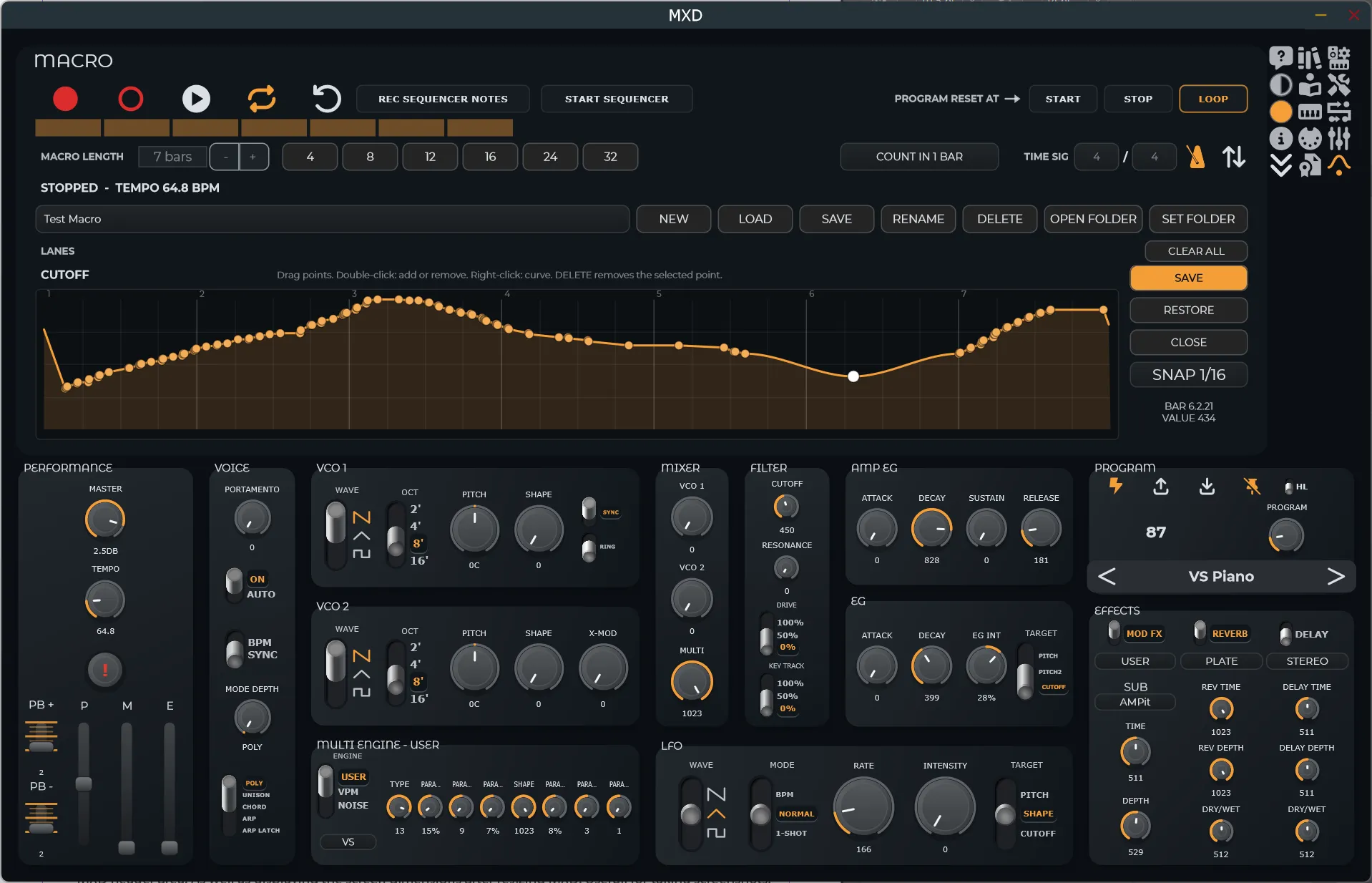
Editing a lane. Double-click a lane to open it in the lane editor.
- Drag a point to move it.
- Double-click to add or remove a point.
- Right-click a point to choose its curve.
- DELETE removes the selected points.
Moving several points. Select the points, then move them together:
- Drag across empty space to draw a box: every point inside it is selected. Hold SHIFT to add to the selection.
- CTRL-click (CMD-click on a Mac) adds a point to the selection, or takes it out.
- CTRL+A (CMD+A) selects all the points, and ESC clears the selection.
- Drag any selected point to move them all, keeping their shape. They stop at the points either side of them, so the envelope keeps its order.
- The left and right arrow keys move the selection by the SNAP step (a sixteenth with SNAP OFF), or a bar with SHIFT. The up and down arrow keys move it by 1% of the control’s range, or 10% with SHIFT.
- The right-click curve menu sets the curve around every selected point.
Editing the notes. Double-click the NOTES row to open the phrase as a piano roll.
- Drag a note to move it, or drag its right edge to change its length.
- Double-click to add or remove a note.
- Right-click a note to set its velocity.
- Use the mouse wheel to scroll the keys.
Moving several notes. Select the notes, then move them together:
- Drag across empty space to draw a box: every note it touches is selected. Hold SHIFT to add to the selection.
- CTRL-click (CMD-click on a Mac) adds a note to the selection, or takes it out.
- CTRL+A (CMD+A) selects all the notes, and ESC clears the selection.
- Drag any selected note to move them all, in time and pitch. A chord keeps its shape.
- The left and right arrow keys move the selection by the SNAP step (a sixteenth with SNAP OFF), or a bar with SHIFT. The up and down arrow keys move it a semitone, or an octave with SHIFT.
- DELETE removes the selected notes, and the right-click velocity menu sets them all.
Both editors work the same way:
- SNAP sets the step that moves follow (1/32, 1/16, 1/8, 1/4 or OFF). Hold SHIFT while dragging to move freely. Each editor remembers its SNAP setting.
- SAVE writes your edits into the Macro, and UNDO can take them back.
- RESTORE goes back to the last save.
- CLOSE closes the editor, asking first if there are edits you haven’t saved.
Poly chain. With two Minilogue XDs in poly chain, MXD sends every note to the master XD, which passes voices five to eight to the second XD. That way a phrase can use all eight voices.
Grid, SNAP and QUANTIZE. The notes editor shows bar lines, fainter beat lines, and, when there is room, lines at the SNAP step, so you can see where each note falls. SNAP guides a note as you drag it; when you drag several notes together, the one you grabbed snaps and the others keep their distance from it. To put every note on the grid, use QUANTIZE: it moves the start of each selected note, or of every note when none is selected, to the nearest SNAP step (1/16 with SNAP OFF), and keeps the notes’ lengths. Two notes of the same pitch that land on the same step become one, keeping the louder. SAVE keeps the result, and RESTORE takes it back.