Theme and Interface
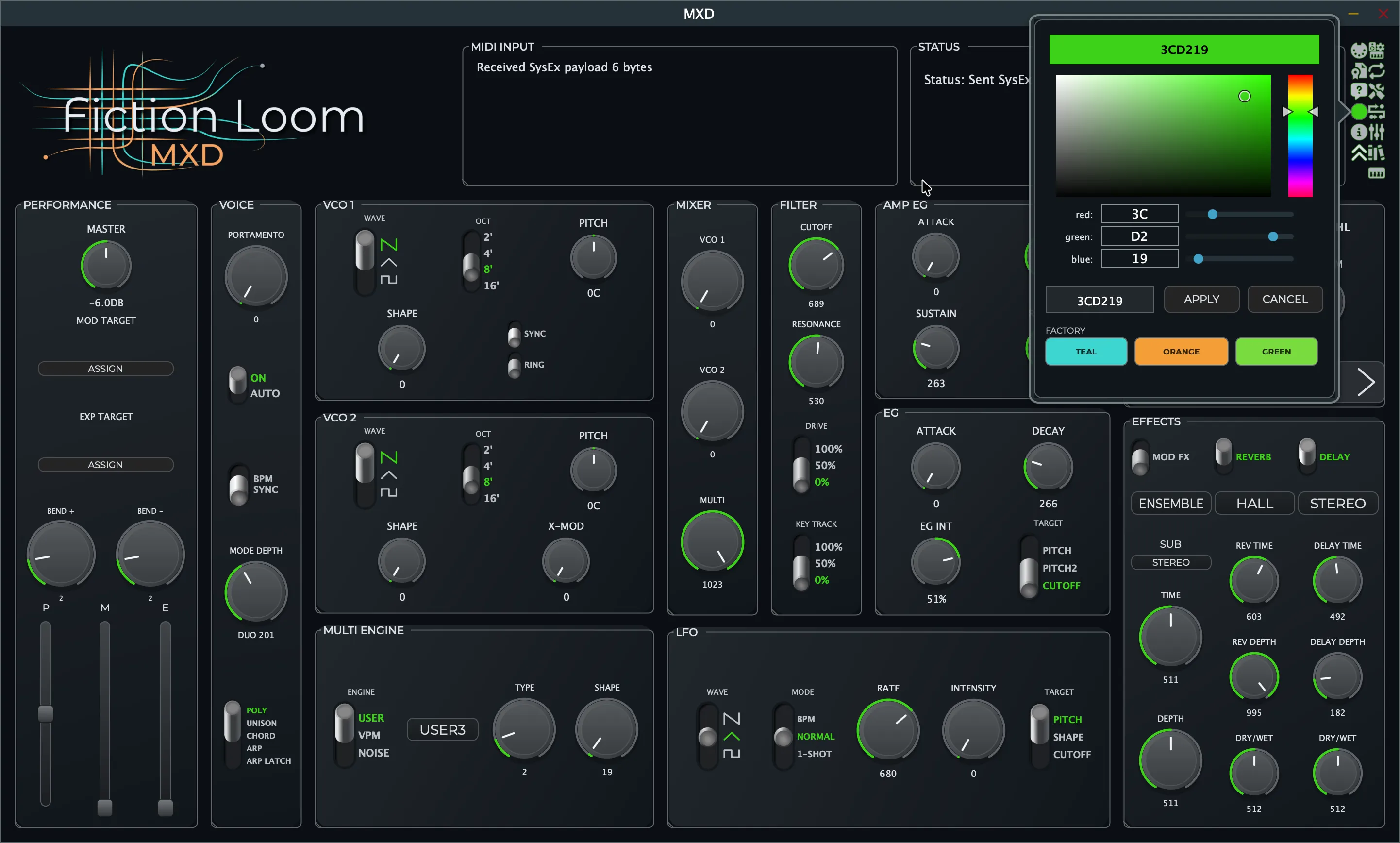
MXD includes accent color controls for the main highlight colors used throughout the interface. Click the circular Accent Color icon to cycle the available accent slots. Use SHIFT + click to choose a custom color for the current slot. You can also reset the color picker to restore the default accent colors.
The right-side icon rail opens header areas for workflows such as Licensing, MIDI Learn, Advanced Settings, Quick Help, About, and the sequencer. These header areas are mutually exclusive, so opening one closes the previous one and keeps the lower synth controls from being compressed unnecessarily. Quick Help overlays identify important controls directly on the interface. Click the Quick Help icon to show or hide the overlay. Tooltips remain available for more focused control hints.
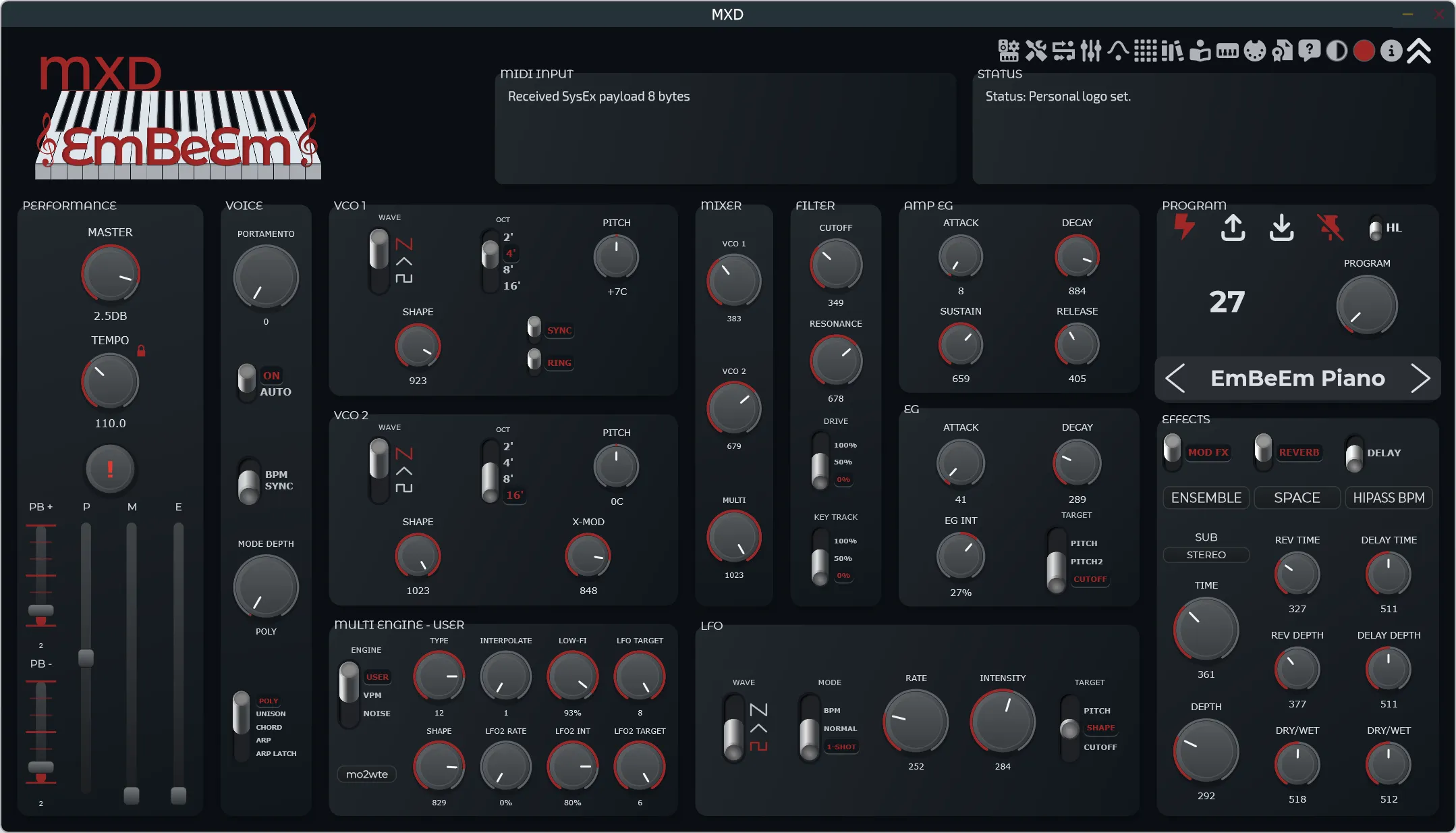
Personalizing the header logo. You can show your own logo in the header, which is ideal when you teach or make tutorials with MXD. Move the mouse over the logo and click PERSONALIZE at its bottom right. Click Browse and choose a PNG, JPEG or GIF image; the ideal size is 1246 x 530 pixels, and a PNG with a transparent background works best. MXD keeps a copy of your image in its settings folder and shows it from then on, so you can move or delete the original. The MXD name always stays at the top left of the logo, in your accent color, so leave room for it in your design. To go back to the Fiction Loom logo, click PERSONALIZE again and choose Delete; Cancel leaves the logo as it is.