Macros
A Macro records what you play and the moves you make on MXD, on your controller or on the Minilogue XD itself, and plays them back in time. Each control you move becomes a lane, and the notes you play become the Macro’s phrase. Open the MACRO tab with the Macro icon in the icon rail.
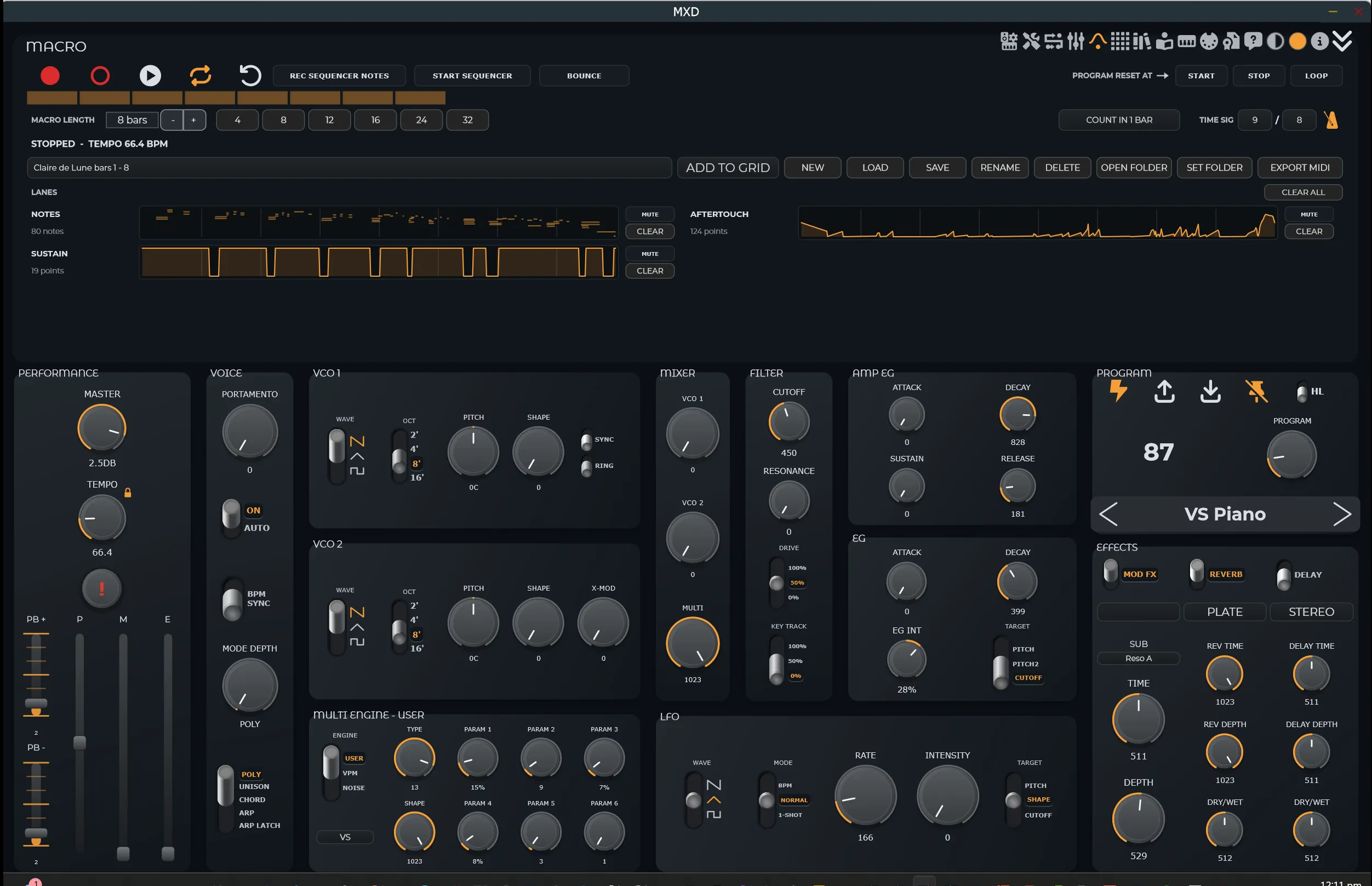
Recording and playing
Section titled “Recording and playing”- REC records a new Macro from the next bar line. When the pass ends, it replaces the Macro’s lanes and notes, then plays on if LOOP is on, or stops.
- OVERDUB records over the Macro from the next bar line, pass after pass while LOOP is on (one pass when it’s off), until you press STOP. Controls you move replace what their lanes held; notes you play are added to the phrase.
- PLAY / STOP starts and stops the Macro.
- LOOP on repeats the Macro. Off, it plays once to its end and stops, and a recording ends stopped. LOOP is saved with the Macro.
- UNDO takes back the last pass, clear or length change.
- CLEAR ALL clears every lane and the notes. If the Macro has a bounce, MXD asks first, and its WAV goes to the Recycle Bin (Windows) or Trash (macOS).
In the standalone app, REC, OVERDUB and PLAY start MXD’s own clock (see Timing). In a DAW, Macros follow the DAW’s transport: press REC, then start the transport.
MACRO LENGTH sets the Macro’s length in bars, up to 32, with the – and + buttons or the 4, 8, 12, 16, 24 and 32 presets. Shortening a Macro crops its lanes; lengthening it leaves the new bars empty.
In the standalone app, a Macro records what you play on a controller ticked in the MIDI I/O section, just as it records the CONTROLLER input: notes, aftertouch, the sustain pedal, and the pitch bend, modulation and expression wheels.
Saving and loading Macros
Section titled “Saving and loading Macros”Macros are saved as .mxdmacro files in the Macro folder, which is Documents\MXD\Macros on Windows or ~/ Documents/MXD/Macros on macOS unless you choose another.
- The menu lists the Macros in the folder, and shows UNSAVED MACRO until the current one is saved.
- ADD TO GRID, beside the menu, puts the selected Macro, or with none selected the one in the lanes, into the first empty slot of the grid you choose.
- NEW starts a new, empty Macro.
- LOAD loads the selected Macro. A playing Macro switches to it at once.
- SAVE saves the Macro, asking for a name the first time. It’s lit while there are unsaved changes.
- RENAME renames the selected Macro.
- DELETE moves it to the Recycle Bin (Windows) or Trash (macOS).
- OPEN FOLDER opens the Macro folder.
- SET FOLDER chooses another folder.
MXD asks before NEW or LOAD would lose unsaved changes.
Organizing Macros in folders. Click OPEN FOLDER, then make folders, and folders inside folders, and move your Macros into them. MXD shows each folder as a submenu: in the Macro menu, in a slot’s Load from library, and in the favorites. SAVE keeps a Macro in its folder, and RENAME renames it there.